

InnoCodia InnoCodia
Home
Plugins
Better Badge Dynamic product badges that lift conversions Store Manager (opens in a new tab) Advanced stock control for every product Better Recovery Soon Win back the carts your store loses
View all plugins
Blog Guides, tips and release notes Documentation Setup guides and developer reference Video Tutorials (opens in a new tab) Watch walkthroughs on YouTube
About Contact
My Account Get Better Badge Pro
Home
Better Badge Store Manager (opens in a new tab) Better RecoverySoon View all plugins
Blog Documentation Video Tutorials (opens in a new tab)
About Contact
My Account Get Better Badge Pro

Getting Started

1
  • How to install Better Badge Plugin?

Custom Badge

2
  • How to make custom animation badge by Better Badge plugin?
  • How to create custom badge by using Better Badge?

Image Badge

1
  • How to create image badge by using Better Badge?

HTML Badge

1
  • How to create Custom HTML badge by using Better Badge?

Filter

2
  • How to create dynamic low stock badge?
  • How to create filter in Better Badge?

Settings

1
  • How to hide WC sale badge and show custom badges?
View Categories
  • Home
  • Docs
  • Settings
  • How to hide WC sale badge and show custom badges?

How to hide WC sale badge and show custom badges?

1 min read

In WooCommerce, on-sale products display the default sale badge. By using Better Badge, you can show a custom-made badge and also hide the WooCommerce default sale badge.
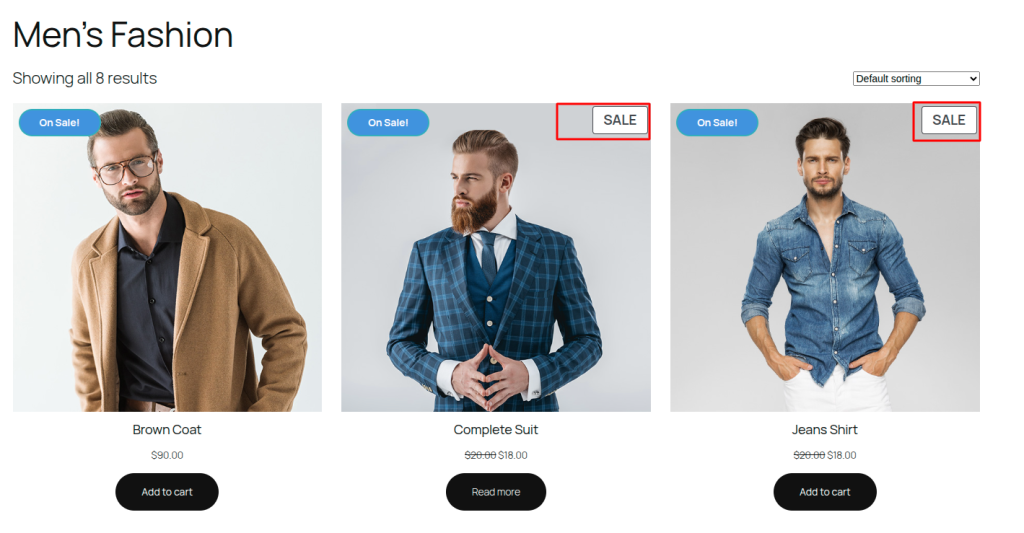
How to hide the WooCommerce default on-sale badge? #

To hide the WooCommerce default sale badge, follow the steps below.

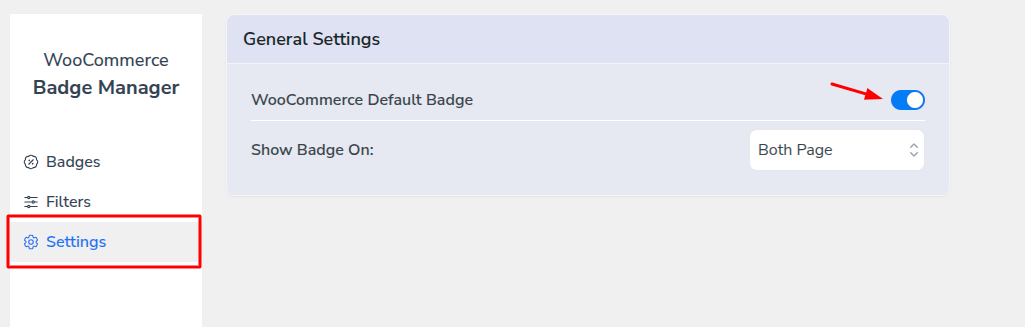
  1. First, go to the Better Badge from the admin dashboard.
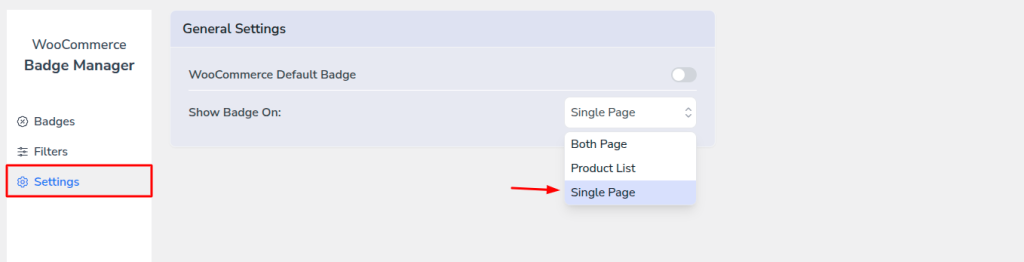
  2. Then click on the Settings.
  3. Disable WooCommerce Default Badge settings.

It will automatically save the settings. No need to save from anywhere.
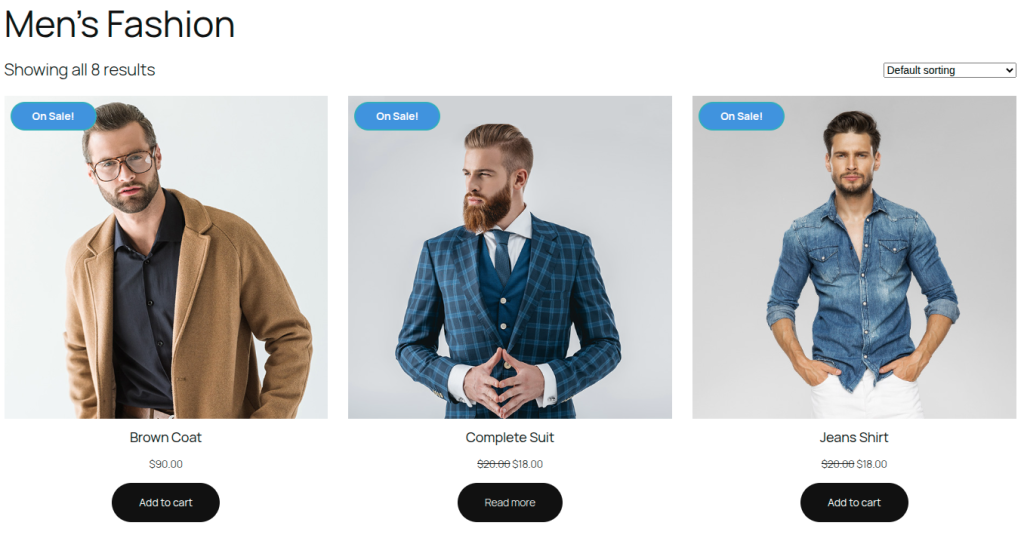
Now go to the shop page and see that the WooCommerce default on-sale badge is hidden from the shop, and the custom product badge is showing properly.
How to show/hide a custom badge from the shop or single product page? #

When you create a custom badge by using Better Badge, it will automatically show badges in the shop page and the single product page. If you want to show badges only for the shop page, then follow the steps below.

  1. Go to Better Badge settings.
  2. Select Product List from the Show Badge On settings dropdown.

That’s it, your custom product badge will show only on the Shop/Product List page.
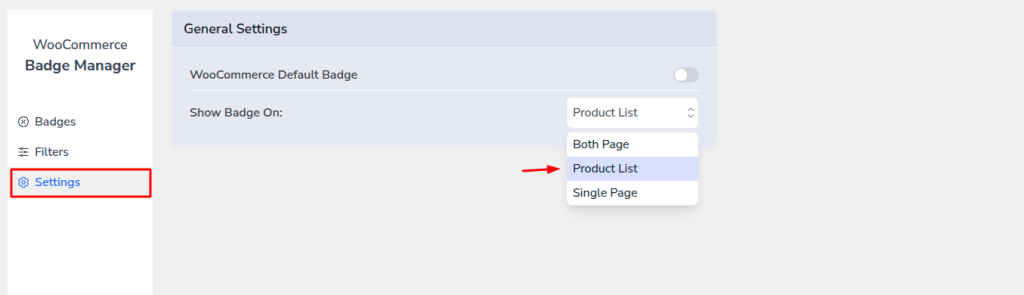
If you want to show custom badge only on single product page, then just select Single Page from Show Badge On settings. It will show badge only on Single product page.
Updated on September 2, 2025

What are your Feelings

  • Happy
  • Normal
  • Sad

Share This Article :

  • Facebook
  • X
  • LinkedIn
  • Pinterest
How to hide WC sale badge and show custom badges?How to hide WC sale badge and show custom badges?

Leave a comment Cancel reply

Your email address will not be published. Required fields are marked *

Table of Contents
  • How to hide the WooCommerce default on-sale badge?
  • How to show/hide a custom badge from the shop or single product page?
InnoCodia

Building smarter, faster and more reliable WooCommerce plugins for modern e-commerce stores.

  • Facebook
  • Instagram
  • X
  • LinkedIn
  • YouTube
  • WordPress
  • GitHub

Plugins

  • Better Badge
  • Store Manager (opens in a new tab)
  • Better Recovery Soon
  • Pricing

Resources

  • Blog
  • Video Tutorials (opens in a new tab)
  • Documentation
  • Changelog

Company

  • About Us
  • Contact
  • Privacy Policy
  • Terms of Service
  • Refund Policy

© 2026 InnoCodia. All rights reserved.

WordPress® and WooCommerce® are registered trademarks of their respective owners.