Open the WordPress plugin directory and search “WooCommerce,” and you’ll get thousands of results. Most store owners don’t need thousands. They need to know which plugins are actually worth knowing.
The most popular WooCommerce plugin isn’t necessarily the best one. And unless this is your first WooCommerce blog ever :3, you probably already know most of these names. Consider this a little test: how many do you recognize?
I’ve used most of them myself, and it was hard to narrow the list down to 22 popular WordPress plugins for WooCommerce, organized into 10 categories. No filler picks, no pay-to-play placements. Just popular plugins, why store owners use them, and the tradeoffs worth knowing.
Note: Install and rating figures reflect a snapshot from August 2026. These numbers shift constantly, so check the plugin’s own page for the current count before you decide.
Bonus Pick: An Emerging WooCommerce Plugin
Not every worthwhile WooCommerce plugin is among the most-installed
options. Some are newer or more specialized and have built a strong
presence within a specific niche.
Better Badge for WooCommerce
is one such example. As a newer plugin, it doesn’t have the installation
numbers or review volume of the established plugins above—yet. But if you
specifically search for popular WooCommerce product badge
plugins, Better Badge is a name you’ll come across, and there’s
a reason for that.
It helps stores highlight discounts, low stock, best sellers, and other
product details with badges, making products more noticeable and helping
increase conversions.
What Does “Popular” Actually Mean?
“Popular” sounds simple, but there’s more to it than a big install number. For this list, I looked beyond raw downloads to see which plugins are actually widely used, recognized, discussed, and maintained within the WooCommerce community.
Active installations aren’t the whole story
WordPress.org caps its public install counter at “10M+,” so a plugin sitting on 11 million looks identical to one sitting on 40 million. Install counts also include abandoned sites, dev environments, and plugins bundled by default with a theme or host. A high number tells you a plugin is widely distributed. It doesn’t tell you whether the people using it are happy, or whether they even chose it themselves.
Popular with WordPress users vs. popular with WooCommerce users
A lot of “most popular WordPress plugins” lists are dominated by tools that have nothing to do with ecommerce: security, backups, general SEO. Those matter for a store too, but a plugin with 10 million installs across every kind of WordPress site (blogs, portfolios, brochure sites) isn’t the same signal as a plugin with 400,000 installs that are almost entirely WooCommerce stores. We tried to separate the two in how we picked this list.
What I looked at to build this list
Active installs and ratings on WordPress.org, where available
Reputation within its category for premium-only plugins
How often it comes up in store-owner discussions and support forums
Whether it’s actively maintained, rather than relying on an old install base
How to Navigate This List
The plugins below are grouped by functionality, with 10 categories covering the most popular plugins in each area:
Jump to the section you’re interested in and see which plugins keep showing up in that category.
Popular WordPress Plugins for WooCommerce
Store Building Plugins for WooCommerce
1. Elementor
The drag-and-drop builder for turning your store design ideas into reality.
Popularity Snapshot
↓ 10M+
Active Installations
WordPress.org
★ 4.5/5
Average Rating
7,293 Reviews
↻ Active
Actively Maintained
Frequent updates
$ Free
Free to Start
Pro starts at $60/year
Best For
Visual store builder
Non-coders who want full design control.
Good Alternative
Bricks Builder
For developers who want cleaner code output.
Why it’s popular: It turned page building into drag-and-drop, no code needed, and WooCommerce support (product pages, shop archives, checkout design) is now baked into Pro.
Elementor replaces the default WordPress editor with a live, drag-and-drop canvas. You place widgets (headings, images, buttons, product grids) directly on the page and see the result as you build. For WooCommerce, Pro adds a dedicated store builder: custom product pages, cart and checkout templates, and archive layouts, without touching a theme’s PHP files.
Version 4 introduced an “Atomic Editor,” which moves toward reusable global components and design tokens rather than one-off styling on every page.
It’s the fastest way for a non-developer to get a professional-looking store live, and the ecosystem (widgets, templates, tutorials) is so large that almost any layout question already has an answer somewhere.
Worth knowing: Elementor’s real cost shows up at scale, not at signup. Pages built entirely in Elementor tend to carry more CSS and JS than a lean theme, and Core Web Vitals scores often lag behind Gutenberg or lighter builders. WooCommerce-specific features (Theme Builder, cart/checkout design) require Pro, starting at $60/year.
My take: Elementor is the safe, well-documented default if you want full design control without hiring a developer. If page speed is your top priority, weigh that against the flexibility before committing.
2. WPForms
The easy way to add forms to your store without touching code.
Popularity Snapshot
↓
5M+
Active Installations
WordPress.org
★
4.8/5
Average Rating
14,363 Reviews
↻
Active
Actively Maintained
Frequent updates
$
Free
Free to Start
Pro starts at $99/year
Best For
Contact & lead forms
WooCommerce stores that need contact, order, or lead capture forms.
Good Alternative
Gravity Forms
For complex conditional logic and developer-level customization.
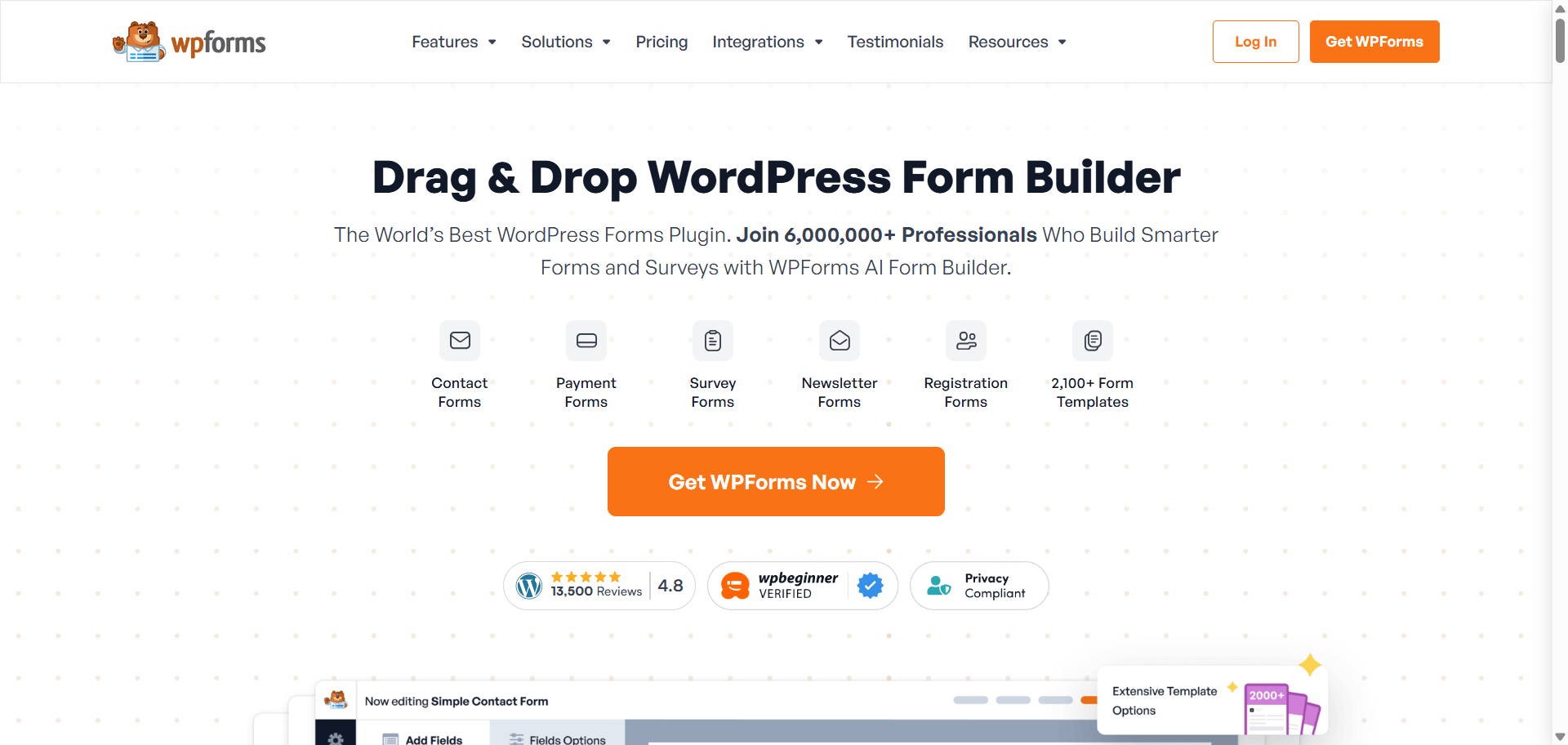
Why it’s popular: Drag-and-drop form building with a large template library, and it stays out of the way once it’s set up.
WPForms lets you build any kind of form, contact, quote request, custom order form, without code. You drag fields onto a canvas, configure logic (show this field only if that one is filled a certain way), and connect submissions to email notifications or your CRM.
For a WooCommerce store, it’s commonly used for pre-purchase questions, wholesale inquiries, or custom product configurators that WooCommerce doesn’t handle natively.
It’s genuinely easy for non-technical users. Templates cover most common use cases out of the box, and the free version already includes Stripe payment fields and spam protection.
Worth knowing: The free Lite version caps you at basic fields and a handful of templates. Multi-step forms, file uploads at scale, and deeper integrations sit behind Pro.
My take: For a first contact or inquiry form, WPForms Lite is enough. Upgrade only once you actually hit a feature wall.
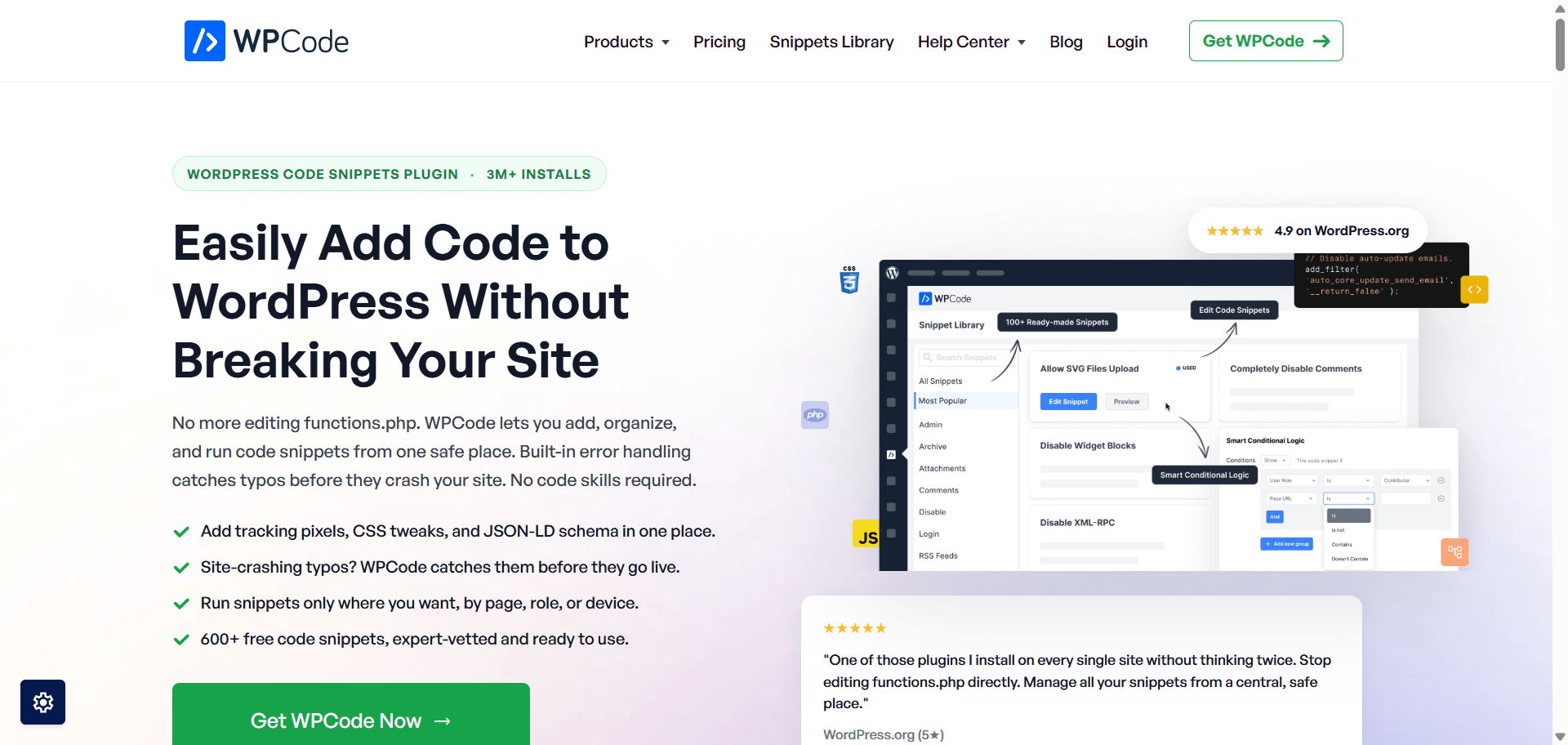
3. WPCode
Add custom code without risking your entire website.
Popularity Snapshot
↓
3M+
Active Installations
WordPress.org
★
4.9/5
Average Rating
1,861 Reviews
↻
Active
Actively Maintained
Frequent updates
$
Free
Free to Start
Pro starts at $99/year
Best For
Custom code & tracking
Site owners who need tracking pixels or small PHP tweaks without editing theme files.
Good Alternative
Code Snippets
A simpler, more minimal option for basic PHP snippets.
Why it’s popular: It replaces the old habit of pasting snippets into functions.php, which breaks the whole site if one semicolon is wrong.
WPCode gives you a dashboard to store, organize, and activate code snippets, PHP, JS, CSS, or HTML, without touching your theme’s files directly. It includes error handling that can auto-deactivate a snippet if it breaks the site, and a library of pre-built snippets for common tasks like disabling comments or adding Google Analytics.
It removes the fear factor from adding custom code. A bad snippet doesn’t take the whole site down; it just gets flagged and disabled.
Worth knowing: It’s a code manager, not a code writer. You still need to know (or find) the snippet you want to add. Conversion tracking, custom hooks, and third-party integrations are the most common WooCommerce use cases.
My take: If your dev workflow involves copy-pasting snippets from tutorials, WPCode is the safety net you’re currently missing.
Search Engine Optimization (SEO) Plugins for WooCommerce
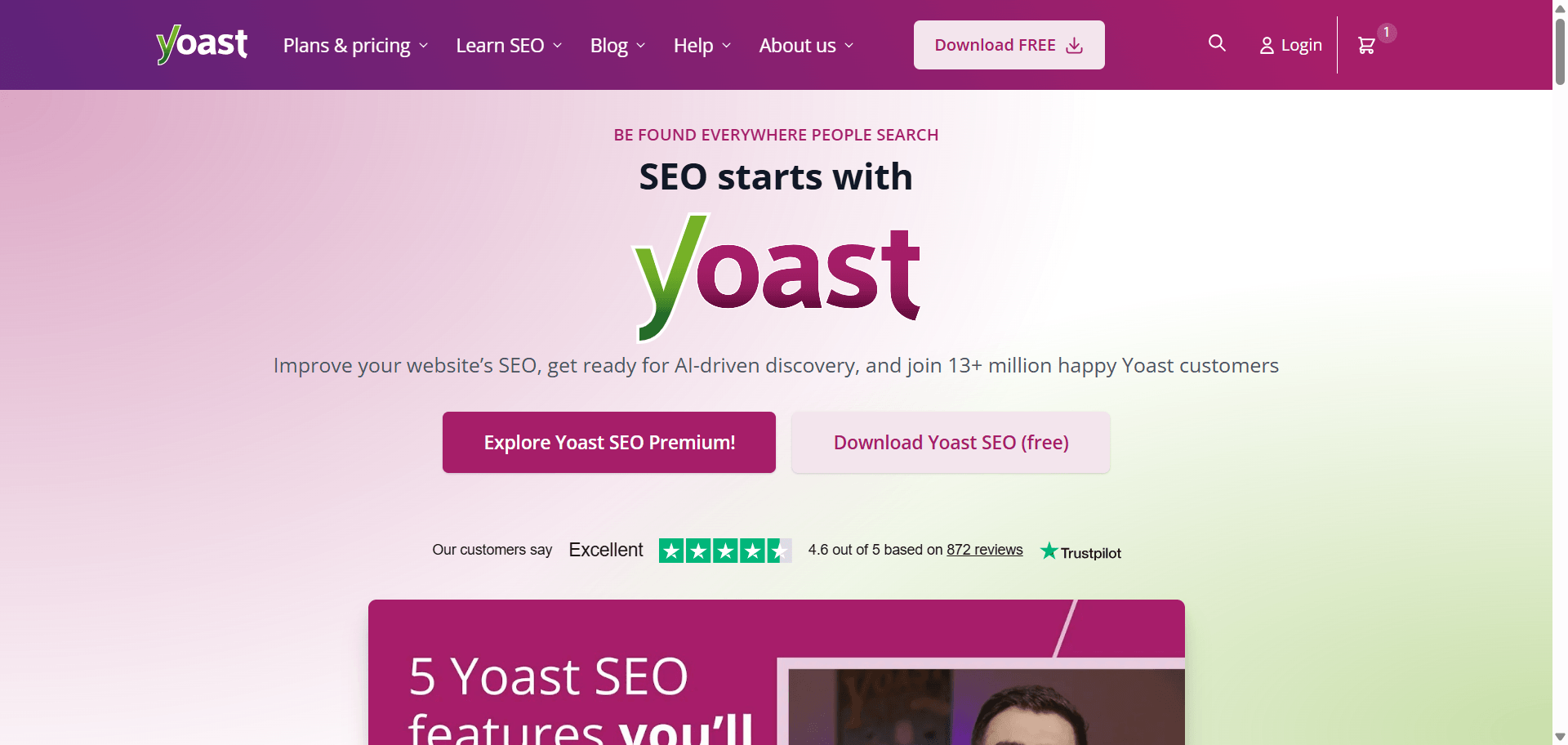
4. Yoast SEO
The WordPress SEO classic that has been around for more than a decade.
Popularity Snapshot
↓
10M+
Active Installations
WordPress.org
★
4.8/5
Average Rating
27,818 Reviews
↻
Active
Actively Maintained
Frequent updates
$
Free
Free to Start
Pro starts at $118.80/year
Best For
Content-rich stores
Sites that publish blog content alongside products.
Good Alternative
Rank Math
For more schema and technical SEO features in the free tier.
Why it’s popular: It’s been the default SEO answer since 2010, with deep content-readability analysis and broad name recognition.
Yoast SEO adds meta title and description control, XML sitemaps, schema markup, and a content analysis tool that scores readability and keyword usage as you write. For WooCommerce, its dedicated extension adds product-specific SEO fields and Google Shopping feed support.
It’s the plugin most WordPress tutorials, agencies, and developers already know, which lowers the learning curve and makes hiring or handing off easier.
Worth knowing: Yoast’s free tier is comparatively thin next to Rank Math’s. Local SEO, WooCommerce SEO, and multiple keyword tracking sit behind separate paid add-ons, which can add up to more than $200/year for a single site.
My take: Yoast is the safer, more established pick if your team already knows it or if long-term stability matters more than free-tier feature depth.
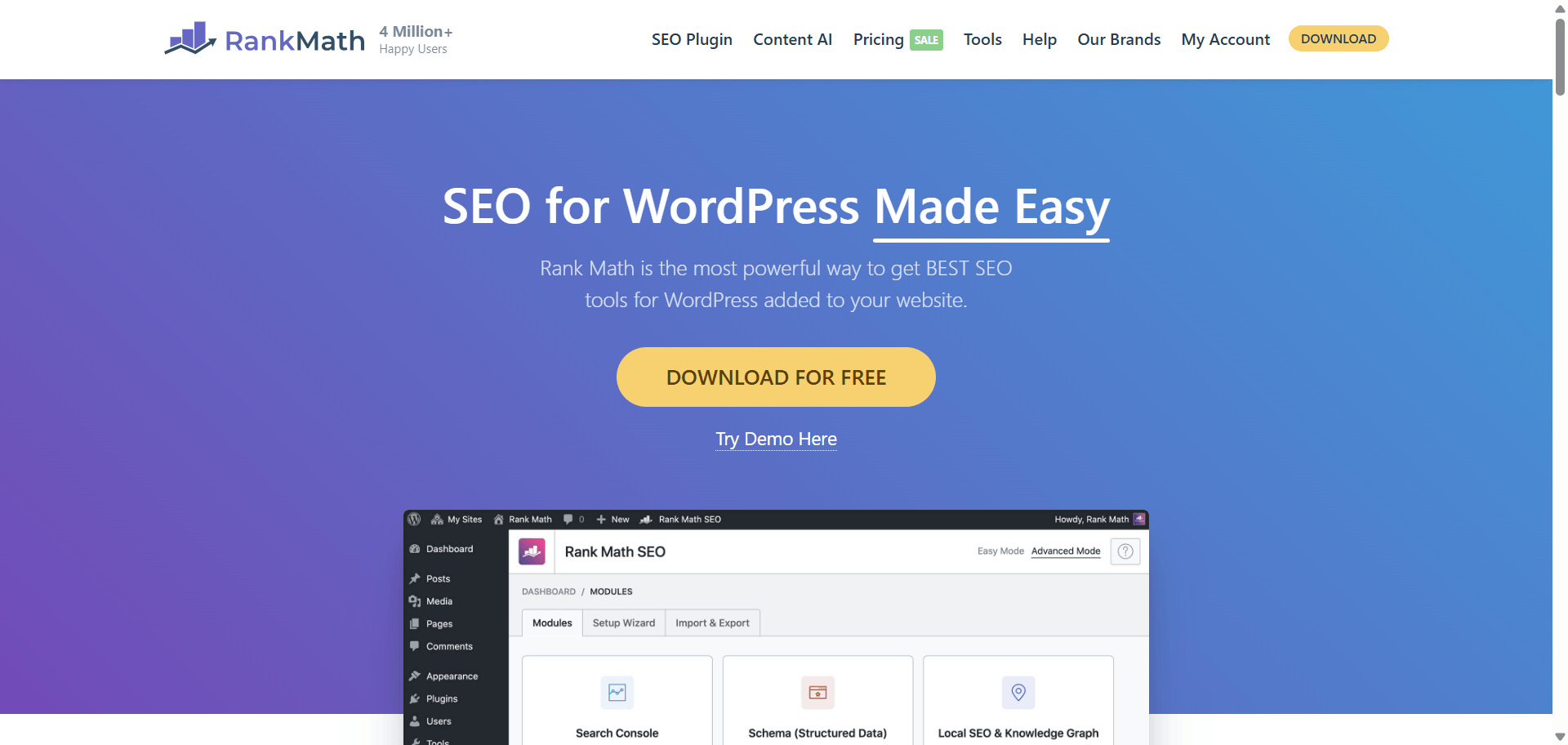
5. Rank Math
The SEO plugin that packs premium-level features into its free plan.
Popularity Snapshot
↓
4M+
Active Installations
WordPress.org
★
4.8/5
Average Rating
7,489 Reviews
↻
Active
Actively Maintained
Frequent updates
$
Free
Free to Start
Pro starts at ~$75/year
Best For
Feature-rich SEO
Store owners who want maximum SEO features without a subscription.
Good Alternative
Yoast SEO
For teams that prioritize a longer track record over feature count.
Why it’s popular: It gives away schema markup, a redirect manager, and Search Console integration for free, features Yoast charges for.
Rank Math combines on-page SEO scoring, schema markup for 20+ content types, redirect management, 404 monitoring, and Google Search Console data, all inside the free version. It includes WooCommerce-specific schema for products and reviews without needing a separate WooCommerce SEO add-on.
The free-to-paid feature gap is smaller than any competitor’s. Multi-site owners and agencies especially notice the difference in what they’d otherwise pay for across several installs of Yoast Premium.
Worth knowing: The settings panel has more options than Yoast’s, which can overwhelm a first-time user. The setup wizard helps, but budget real time to configure it properly.
My take: For most new WooCommerce stores in 2026, Rank Math’s free tier is hard to justify skipping.
Also Worth ConsideringAIOSEO
(All in One SEO) is the oldest SEO plugin in this category, predating
both Yoast and Rank Math. It’s a reasonable middle ground if you want
a simpler interface than Rank Math without Yoast’s steeper paywall.
Caching & Speed Plugins for WooCommerce
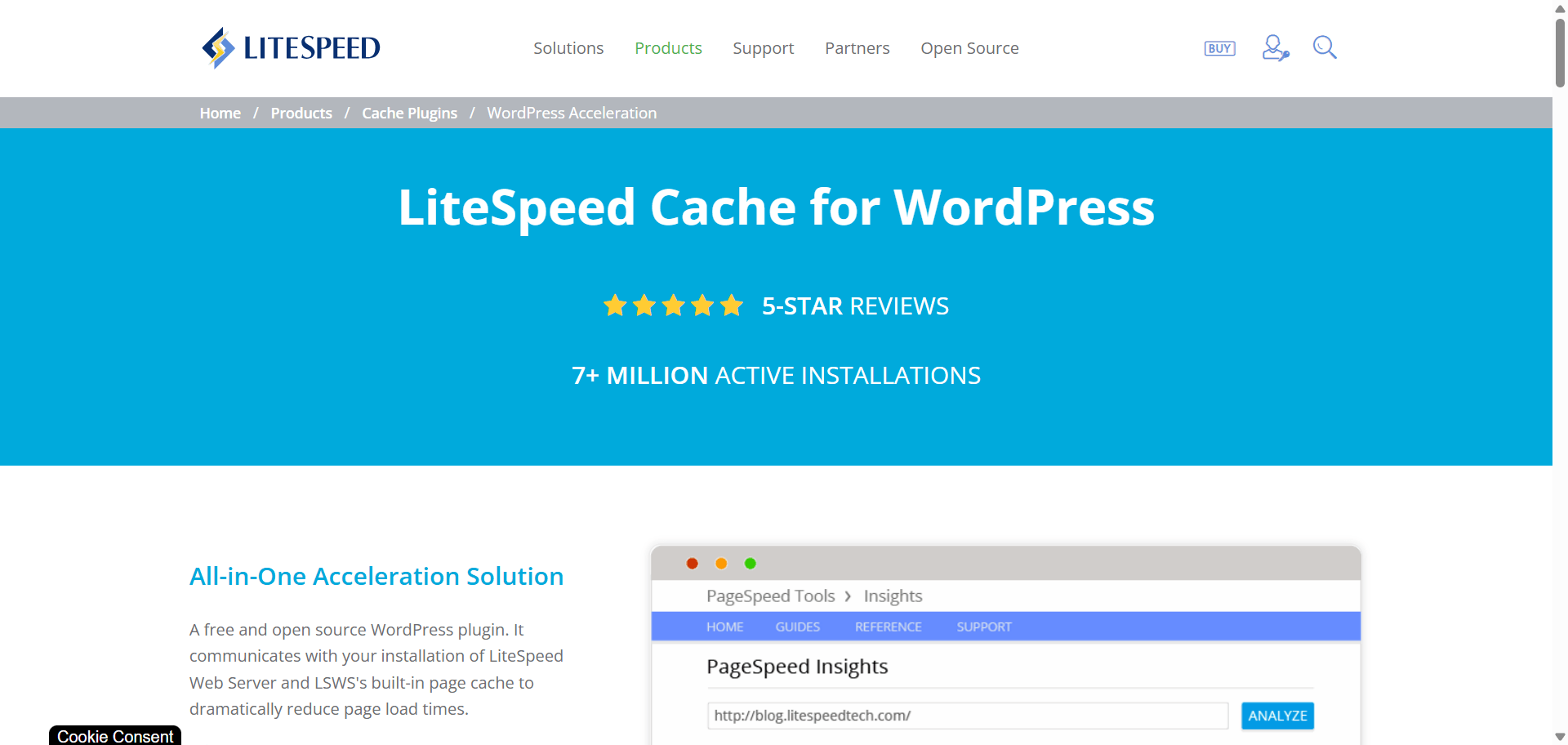
6. LiteSpeed Cache
Free caching and performance tools, with a serious advantage on LiteSpeed hosting.
Popularity Snapshot
↓
7M+
Active Installations
WordPress.org
★
4.8/5
Average Rating
2,763 Reviews
↻
Active
Actively Maintained
Frequent updates
$
Free
Free Only
No Pro version
Best For
LiteSpeed hosting
Stores hosted on LiteSpeed-based infrastructure.
Good Alternative
WP Rocket
For Apache or Nginx stores that want a polished, low-effort setup.
Why it’s popular: It’s completely free and delivers server-level caching that PHP-based plugins can’t match, on LiteSpeed-powered hosting.
LiteSpeed Cache intercepts requests at the server level, before WordPress even loads, which makes it faster than caching plugins that operate purely at the PHP layer. Beyond page caching, it bundles image optimization, CSS/JS minification, database cleanup, and CDN integration through QUIC.cloud.
It’s free, actively developed, and on the right hosting environment it consistently benchmarks ahead of paid alternatives.
Worth knowing: Its biggest advantage, server-level caching, only applies if your host actually runs LiteSpeed. On standard Apache or Nginx hosting, it falls back to application-level caching and loses its edge. The settings panel is also more technical than WP Rocket’s.
My take: Check your hosting stack first. If you’re not on LiteSpeed, this plugin is still capable, just not the reason to choose it.
7. WP Rocket
The “make my website faster” button, with settings you can actually understand.
Popularity Snapshot
↓
5M+
Active Installations
Trustpilot
★
4.6/5
Average Rating
2,969 Reviews
↻
Active
Actively Maintained
Self-hosted
$
Premium
No Free Version
Pro starts at $59/year
Best For
Easy performance optimization
Non-technical owners who want results without digging through settings.
Good Alternative
LiteSpeed Cache
A free option if your hosting supports it.
Why it’s popular: It works identically on any host and gets most of its performance gains configured automatically on activation.
WP Rocket handles page caching, browser caching, lazy loading, and Core Web Vitals features like removing unused CSS and delaying JavaScript execution, all from a single, clearly organized settings screen. It’s not distributed through WordPress.org, so you buy and install it directly from WP Rocket.
Setup takes minutes, not hours. Most of the meaningful settings are already on by default, and the support team responds directly rather than through a public forum.
Worth knowing: There’s no free tier at all, and pricing has increased in recent renewal cycles. On LiteSpeed hosting, it won’t outperform LiteSpeed Cache’s server-level caching.
My take: Worth the $59/year if your time is worth more than the subscription cost and you’re not on LiteSpeed hosting.
Also Worth ConsideringW3 Total Cache
is the pick for developers who want full manual control over every caching
layer, at the cost of a steeper settings panel.
WP Fastest Cache
is the easiest interface of the free options, a good fit if LiteSpeed
Cache’s settings feel like too much.
WP Super Cache
, built by Automattic, is worth considering if you’d rather trust the same
team behind WordPress.com and Jetpack.
Product Management Plugins for WooCommerce
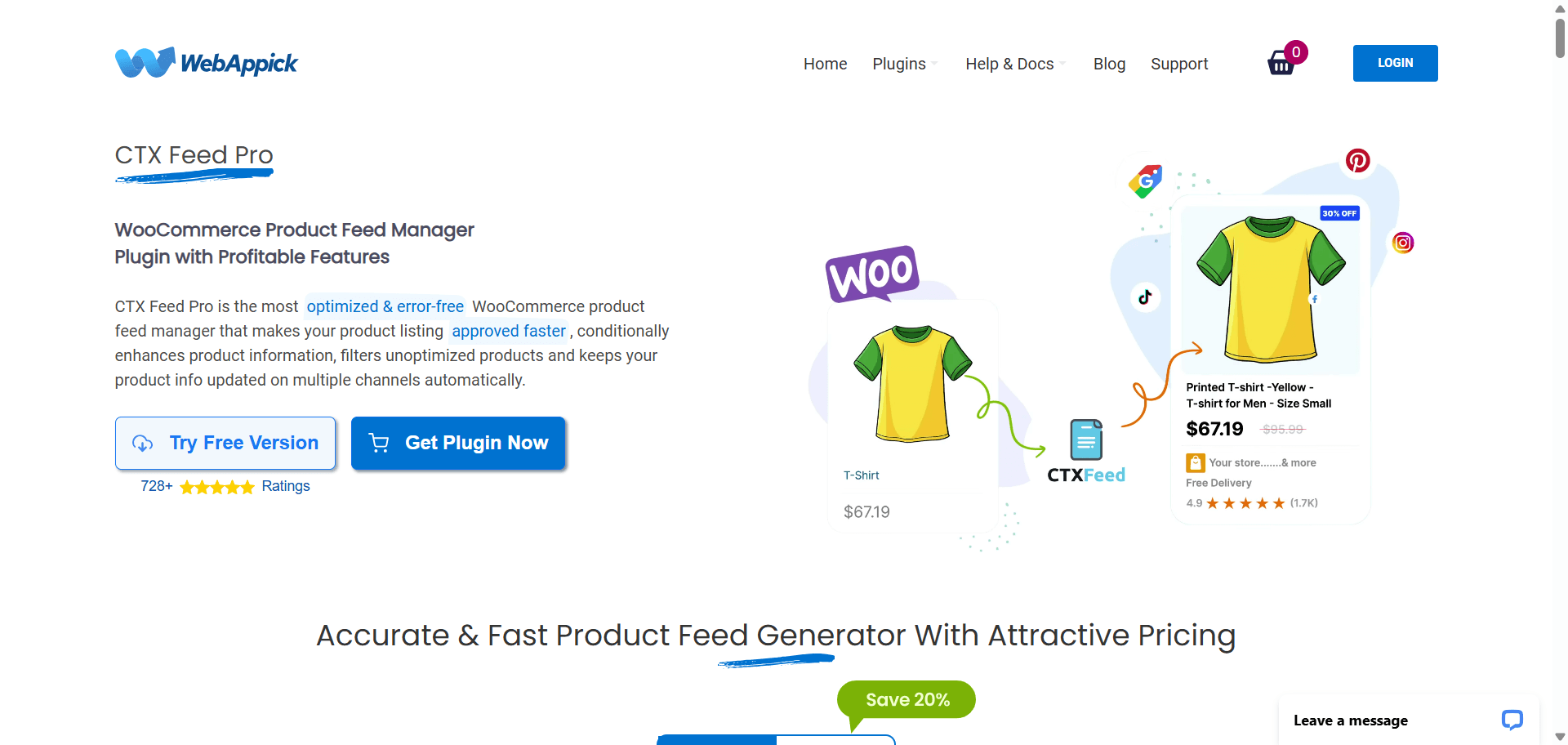
8. CTX Feed
Turn your WooCommerce catalog into ready-to-sync feeds for Google, Meta, TikTok, and 200+ other channels.
Popularity Snapshot
↓
80K+
Active Installations
WordPress.org
★
4.6/5
Average Rating
828 Reviews
↻
Active
Actively Maintained
Frequent updates
$
Free
Free to Start
Pro starts at $119/year
Best For
Multi-channel product feeds
Stores syncing their catalog to Google Shopping, Facebook/Instagram, TikTok Shop, and marketplaces.
Good Alternative
WP All Import
For general data imports rather than shopping-channel feeds specifically.
Why it’s popular: It maps a WooCommerce catalog to 220+ shopping, social, and marketplace channels without hand-building XML or CSV files for each one.
CTX Feed reads your product data and generates ready-to-submit feeds for Google Merchant Center, Facebook/Instagram catalogs, TikTok Shop, Bing, Pinterest, and dozens of regional marketplaces, with category and attribute mapping built in so fields like GTIN or brand line up automatically. Feeds refresh on a schedule so pricing and stock stay current without manual re-exports.
For stores selling on more than one channel, manually keeping a Google Shopping feed and a Facebook catalog in sync is a recurring chore. CTX Feed automates that end to end.
Worth knowing: The free version covers unlimited products and feeds, but FTP/SFTP auto-upload, advanced filtering, and multi-vendor feeds sit behind Pro at $119/year. Some reviewers have flagged slow support response on refund requests, so read a few recent reviews before buying Pro.
My take: A solid pick once you’re advertising on more than one channel and tired of manually re-exporting your catalog every time a price changes.
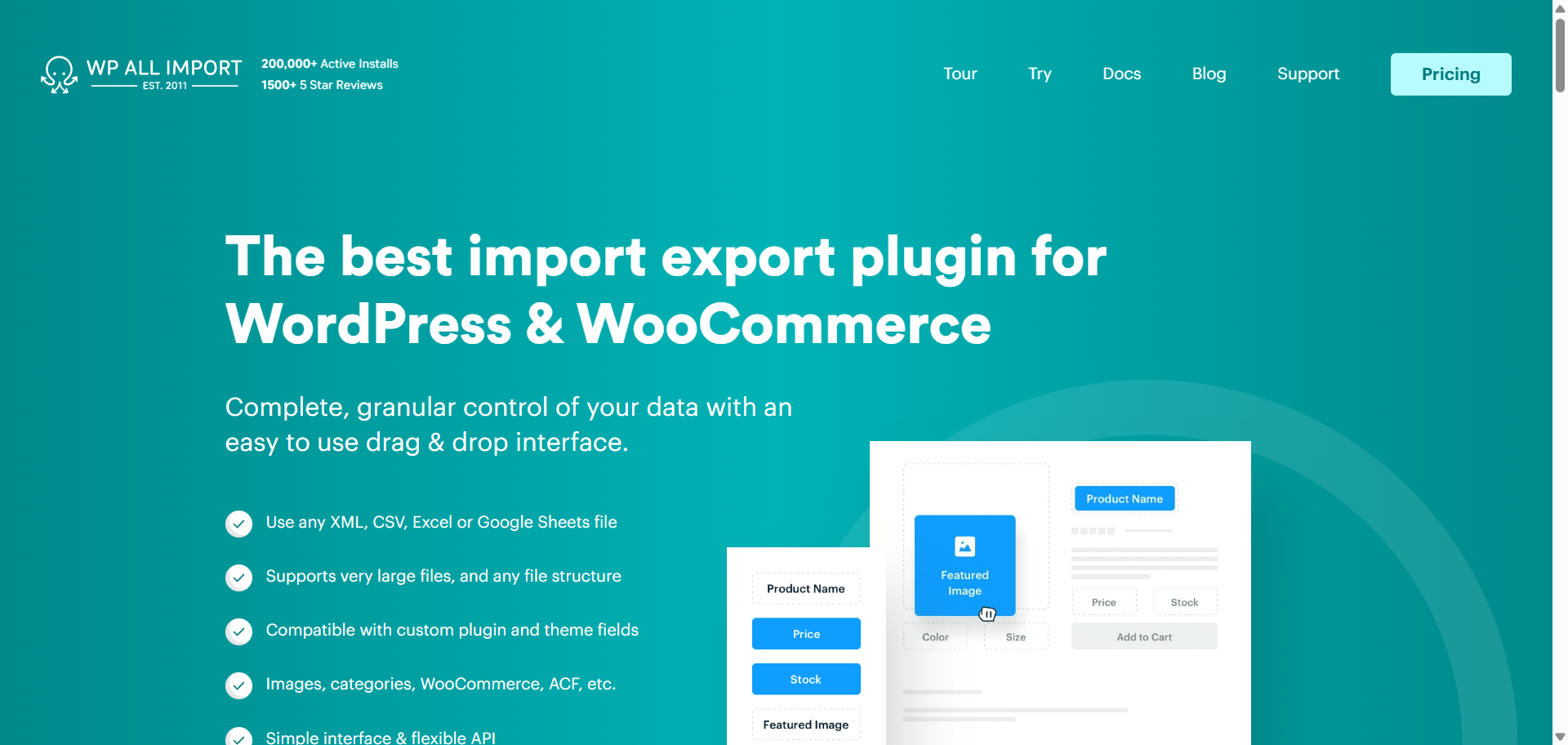
9. WP All Import
Move thousands of products into WooCommerce without entering them one by one.
Popularity Snapshot
↓
100K+
Active Installations
WordPress.org
★
4.7/5
Average Rating
1,962 Reviews
↻
Active
Actively Maintained
Frequent updates
$
Free
Free to Start
Pro starts at $99/year
Best For
Product catalog imports
Store owners migrating large catalogs or syncing product data from supplier feeds.
Good Alternative
Smart Manager
For editing existing products rather than importing new ones.
Why it’s popular: It maps complex CSV, XML, or Excel data to WooCommerce fields visually, without needing a developer to write custom import scripts.
WP All Import reads a data file and lets you drag its columns onto WooCommerce fields visually, product title, price, categories, images, custom attributes, then runs the import (or a scheduled recurring import) automatically. It handles reviews, variations, and custom fields added by other plugins.
Manually re-entering thousands of products from a supplier’s spreadsheet isn’t a realistic option. WP All Import turns that into a repeatable, scheduled process.
Worth knowing: The core plugin’s WooCommerce-ready pricing starts around $99/year, and larger site-count licenses cost more. Large or malformed data files can also require some cleanup before an import runs smoothly.
My take: If you manage a catalog fed by a supplier or distributor, this pays for itself the first time you avoid a manual re-entry job.
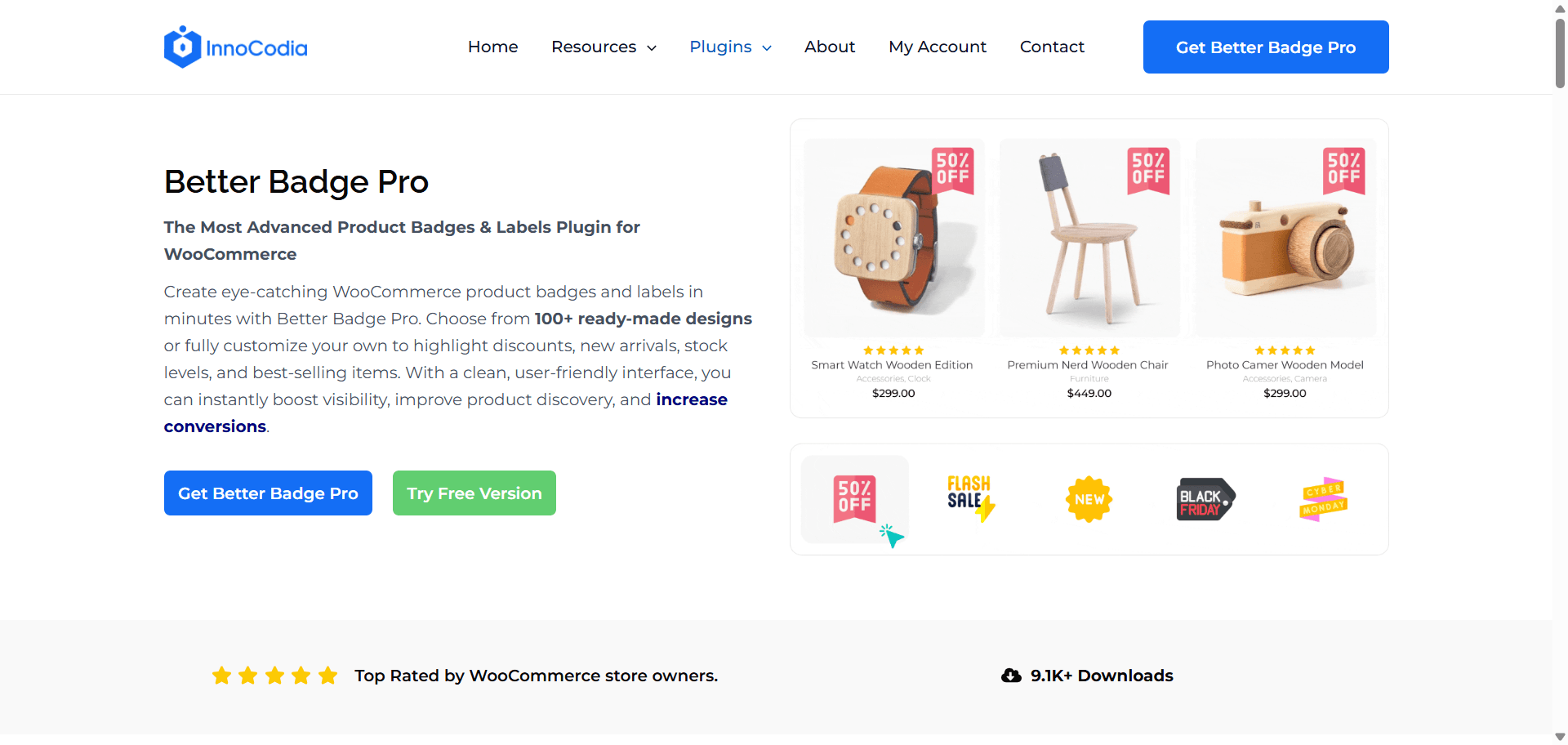
Product badges and labels that make your best offers impossible to miss.
Popularity Snapshot
↓
500+
Active Installations
WordPress.org
★
5.0/5
Average Rating
8 Reviews
↻
Active
Actively Maintained
Frequent updates
$
Free
Free to Start
Pro starts at $49/year
Best For
Sales & urgency badges
Store owners highlighting sales, low stock, and limited-time offers without slowing the store down.
Good Alternative
YITH WooCommerce Badges Management
For stores already using the YITH plugin ecosystem.
Why it’s popular: It focuses on one job, help increase conversions by making important product information impossible to miss. It does this through badges and labels for discounts, low stock, best sellers, and more, with features like scheduling and bulk rules, without the unnecessary extras.
Better Badge adds customizable badges, “On Sale,” “Low Stock,” “New Arrival,” to product images and listings, with 100+ pre-made designs and full control over shape, color, and placement. Badges can be scheduled to appear and disappear automatically, and applied by category, product, or rule (like stock quantity or product age) instead of one at a time.
Store owners running seasonal sales, Black Friday promotions, or stock-based urgency messaging don’t want to manually toggle badges on and off. Scheduling and rule-based badges handle that automatically.
Worth knowing: It’s not the plugin with the biggest install count on this list, that’s an honest tradeoff for choosing a focused tool over a bundled one.
My take: It’s literally more for less. Better Badge does exactly what it’s supposed to do, and it’s genuinely easy to use. You get 100+ free badge templates to start with, while the Pro version adds even more powerful features at a price that stays affordable.
Disclosure: We’re the team behind Better Badge, and we want to be transparent about including it. It focuses specifically on product badges and labels, helping stores highlight discounts, low stock, promotions, and other key product information to grab attention and increase conversions.
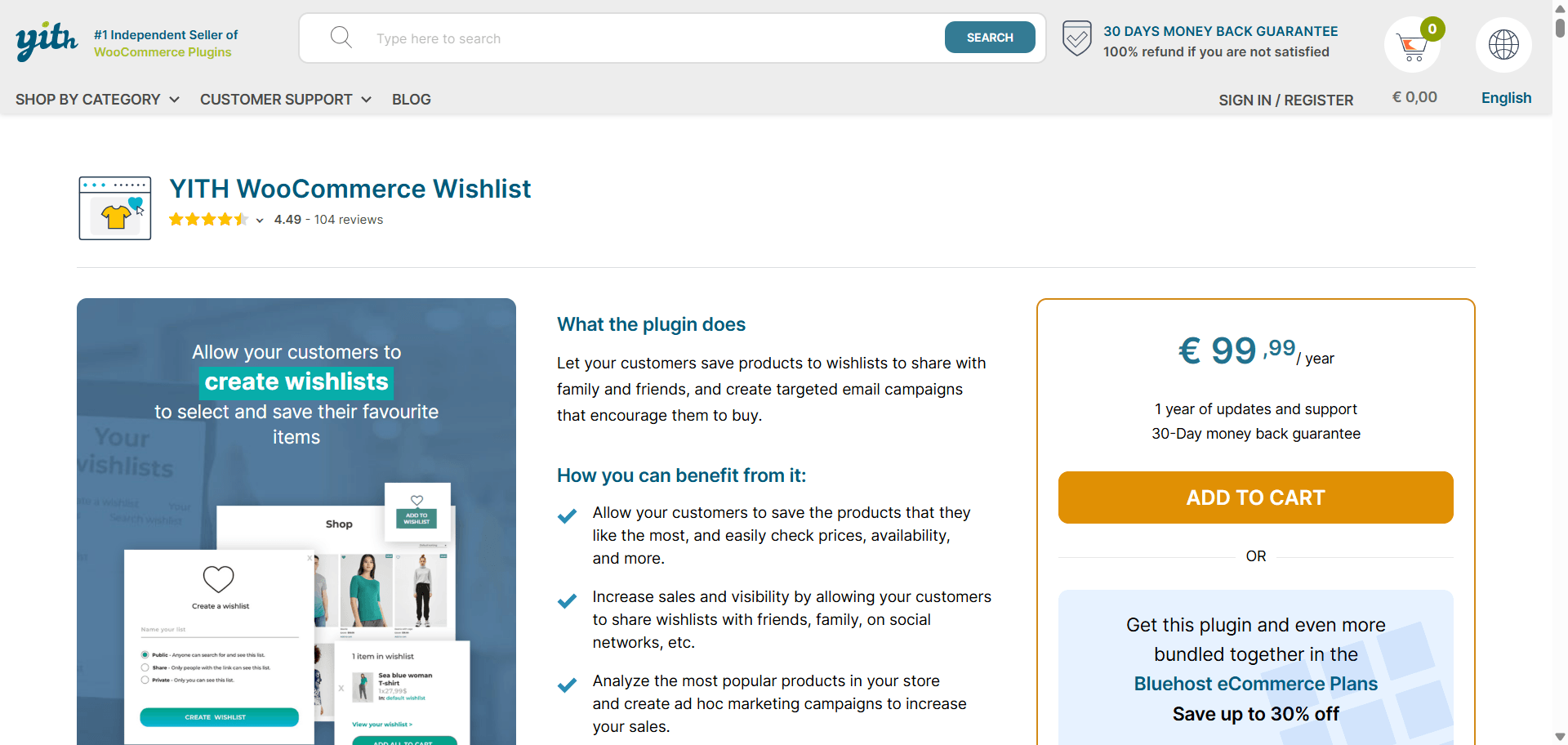
11. YITH WooCommerce Wishlist
The “I’ll buy it later” button that actually remembers.
Popularity Snapshot
↓
400K+
Active Installations
WordPress.org
★
3.9/5
Average Rating
262 Reviews
↻
Active
Actively Maintained
Frequent updates
$
Free
Free to Start
Pro starts at ~$115/year
Best For
Wishlist & product discovery
Fashion, home goods, and gift stores where customers like to browse before buying.
Good Alternative
WPC Smart Wishlist
For a lighter-weight, faster setup.
Why it’s popular: It’s been around long enough to become the default answer for “add a wishlist to WooCommerce,” with a large support and documentation base to match.
YITH Wishlist adds a “save for later” button to product pages and archives. Customers can create multiple named wishlists, share them via link or social media, and store owners get visibility into which products get wishlisted most, useful for planning promotions or restocks.
Saved products are a soft reminder to come back and buy. For stores where purchases aren’t impulsive, gifts, higher-ticket items, wishlists genuinely recover otherwise-lost sales.
Worth knowing: The free version covers the basics well; multiple wishlists, sharing, and deeper customization are Premium features starting at roughly $115/year.
My take: A natural fit for stores where browsing happens well before buying. Skip it for impulse-purchase categories where it adds a step without much payoff.
12. OptinMonster
Popups that know when to show up, and when to stay out of the way.
Popularity Snapshot
↓
1M+
Active Installations
WordPress.org
★
4.3/5
Average Rating
814 Reviews
↻
Active
Actively Maintained
Frequent updates
$
Free
Connector Plugin
Pro starts at $84/year
Best For
Email list growth & on-site offers
Store owners looking to grow their email list and recover abandoned carts with targeted offers.
Good Alternative
Icegram Engage
For a fully free popup and lead-capture option.
Why it’s popular: Exit-intent popups, spin-to-win wheels, and targeted on-site offers, built specifically to grow an email list or recover an about-to-leave visitor.
OptinMonster builds popups, slide-ins, floating bars, and full-screen welcome mats, targeted by behavior: exit intent, time on page, scroll depth, or specific pages visited. For WooCommerce, it’s commonly used for first-purchase discount offers and abandoned-cart-adjacent nudges before a visitor leaves.
The targeting rules go well beyond a generic popup plugin, and the A/B testing built into campaigns makes it easier to prove an offer is actually converting, not just annoying visitors.
Worth knowing: The connector plugin is free to install, but it’s useless without a paid OptinMonster account, and pricing scales with traffic. It’s a genuine cost commitment, not a low-risk trial.
My take: Worth it once you have enough traffic that a 1-2% lift in email signups or conversions is a meaningful number. Not the first plugin to install on a brand-new store.
Checkout Optimization Plugins for WooCommerce
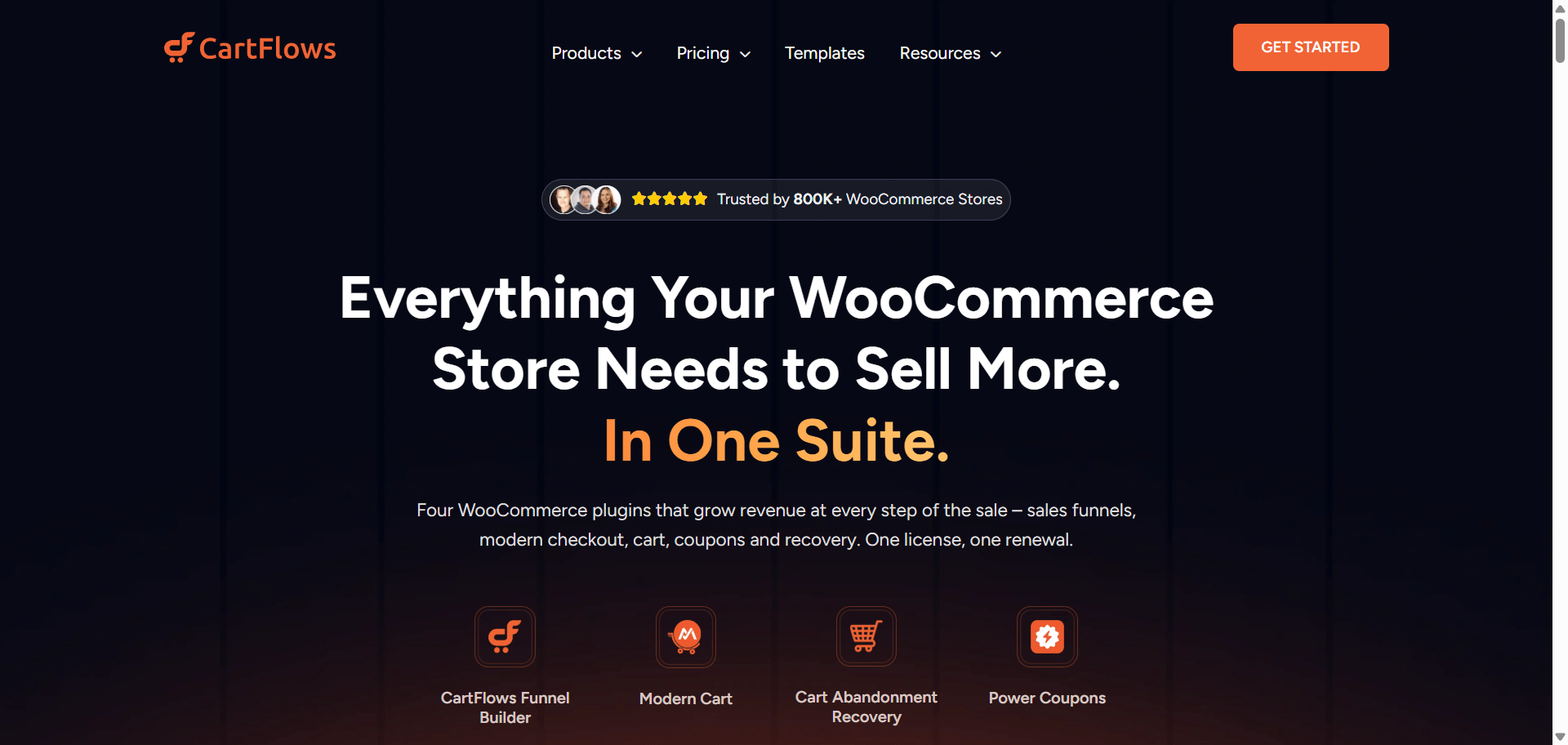
13. CartFlows
Turn WooCommerce’s basic checkout into a conversion-focused buying journey.
Popularity Snapshot
↓
200K+
Active Installations
WordPress.org
★
4.8/5
Average Rating
502 Reviews
↻
Active
Actively Maintained
Frequent updates
$
Free
Free to Start
Pro starts at $99/year
Best For
Checkout & upsell optimization
Store owners who want custom checkout pages, order bumps, and one-click upsells.
Good Alternative
FunnelKit
If you also want built-in email automation.
Why it’s popular: A large chunk of its install base comes bundled through the Astra theme’s ecommerce demos, but it’s also a genuinely capable standalone checkout and funnel builder.
CartFlows replaces WooCommerce’s default checkout with a customizable, distraction-free page builder, then layers order bumps, upsell offers, and downsells on top. It’s built by the team behind Astra and Brainstorm Force, so it integrates cleanly with that ecosystem in particular.
It’s a proven, widely deployed way to reduce checkout abandonment without hiring a developer to rebuild the checkout flow from scratch.
Worth knowing: Full functionality (multiple funnels, deep A/B testing, all order bump types) lives in the paid Pro plan, priced starting at $99/year.
My take: The default choice if you want a checkout and funnel builder with the largest support community behind it.
Payment Plugins for WooCommerce
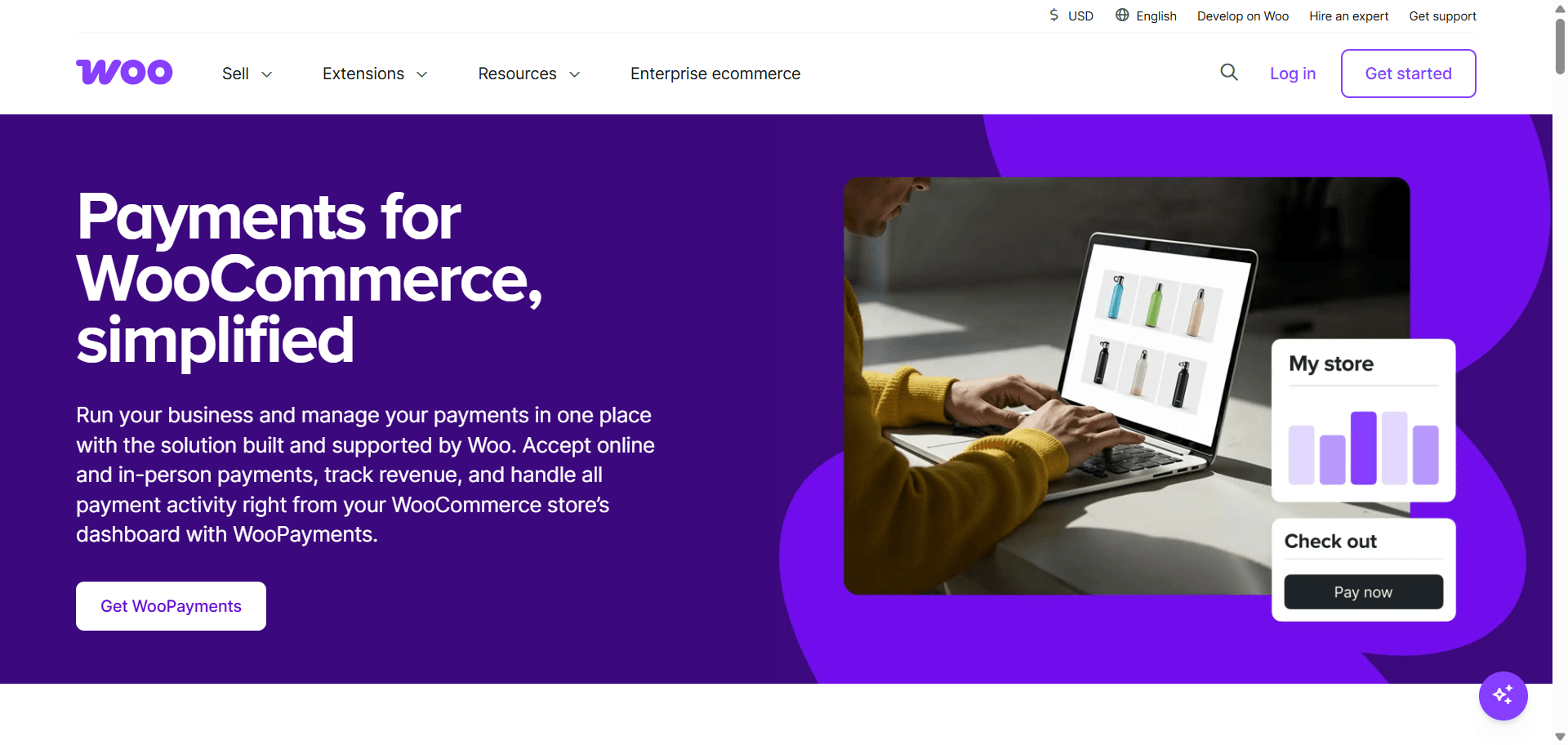
14. WooPayments
Accept and manage payments without leaving your WooCommerce dashboard.
Popularity Snapshot
↓
800K+
Active Installations
WordPress.org
★
3.3/5
Average Rating
165 Reviews
↻
Active
Actively Maintained
Frequent updates
$
Free
Free to Start
Transaction fees apply
Best For
Centralized payment management
Store owners who want one dashboard for payments, refunds, and disputes.
Good Alternative
WooCommerce Stripe Gateway
If you want to keep your existing Stripe account separate.
Why it’s popular: It’s built by the WooCommerce team itself, so setup happens inside the same onboarding flow as the store, no separate account or plugin needed.
WooPayments lets a store accept major credit and debit cards, plus regional payment methods, directly from the WordPress dashboard. Transactions, refunds, and payouts are all managed in one place without logging into a third-party payment processor’s dashboard.
It removes a setup step. New stores following WooCommerce’s own onboarding wizard land on WooPayments by default, and it stays managed from inside wp-admin.
Worth knowing: It’s WooCommerce-specific, not portable if you migrate platforms later, and availability varies by country. Check that it supports your business’s region before building around it.
My take: A sensible default for a brand-new store. If you already run payments through Stripe or PayPal elsewhere in your business, a dedicated gateway plugin may fit better.
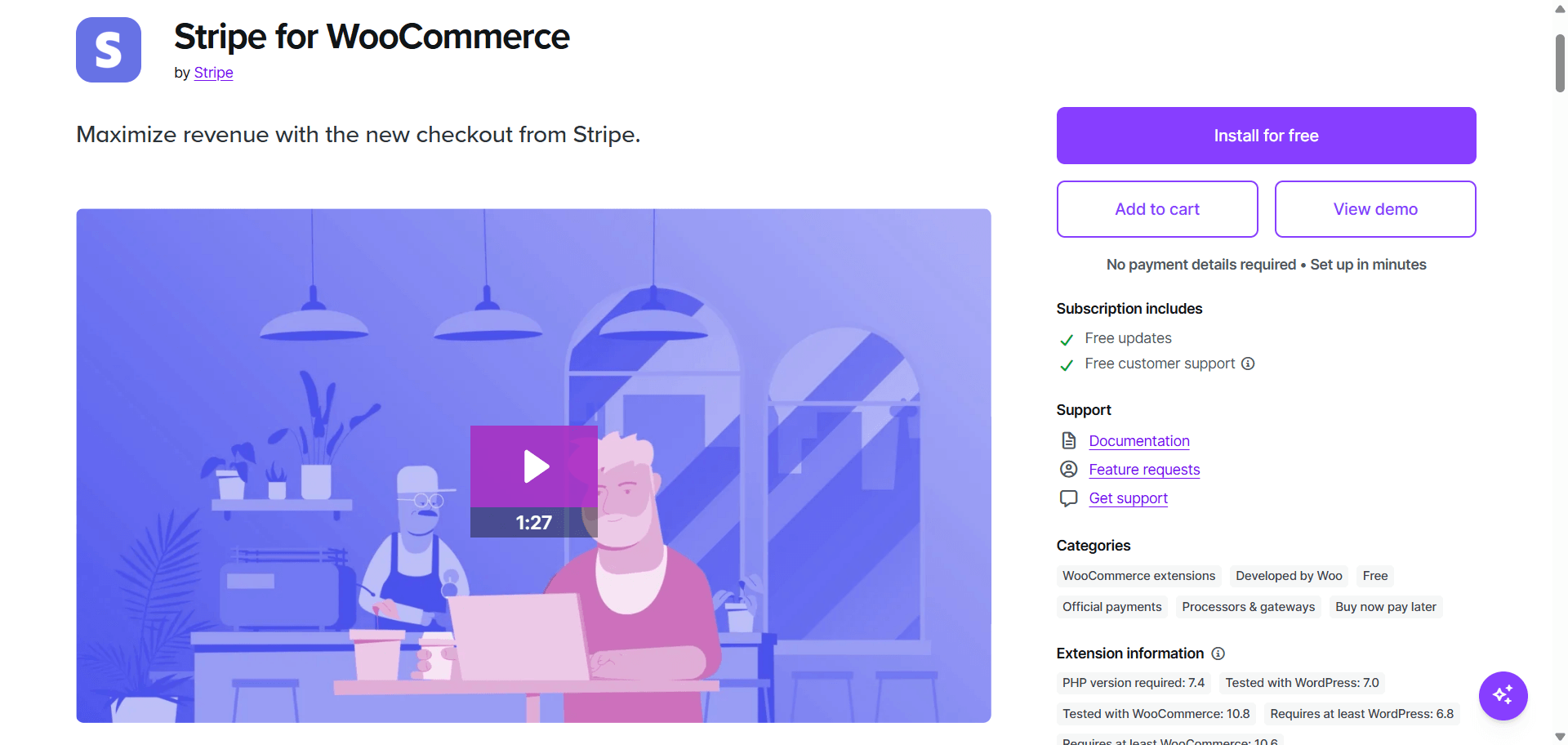
15. WooCommerce Stripe Gateway
Bring Stripe’s familiar payment experience straight to your checkout.
Popularity Snapshot
↓
700K+
Active Installations
WordPress.org
★
3.1/5
Average Rating
235 Reviews
↻
Active
Actively Maintained
Frequent updates
$
Free
Free to Start
Free only
Best For
Stripe payments
Store owners who already use or specifically want Stripe.
Good Alternative
Payment Plugins for Stripe WooCommerce
A widely used alternative with more payment methods, including Klarna and Afterpay.
Why it’s popular: It’s the official integration, maintained jointly by both companies, and covers 135+ currencies plus major local payment methods.
Stripe for WooCommerce connects a WooCommerce store directly to a Stripe account, enabling credit and debit cards, Apple Pay, Google Pay, and local methods like Alipay, ACH, and SEPA, all inside the standard WooCommerce checkout.
It’s the official plugin, which means it’s first in line for compatibility updates when Stripe or WooCommerce ship changes.
Worth knowing: Some third-party Stripe plugins actually ship features (like Afterpay or Klarna support) faster than the official one. Compare feature lists before assuming “official” means “most complete.”
My take: The safe default for Stripe. Worth comparing against Payment Plugins’ version if you need buy-now-pay-later methods specifically.
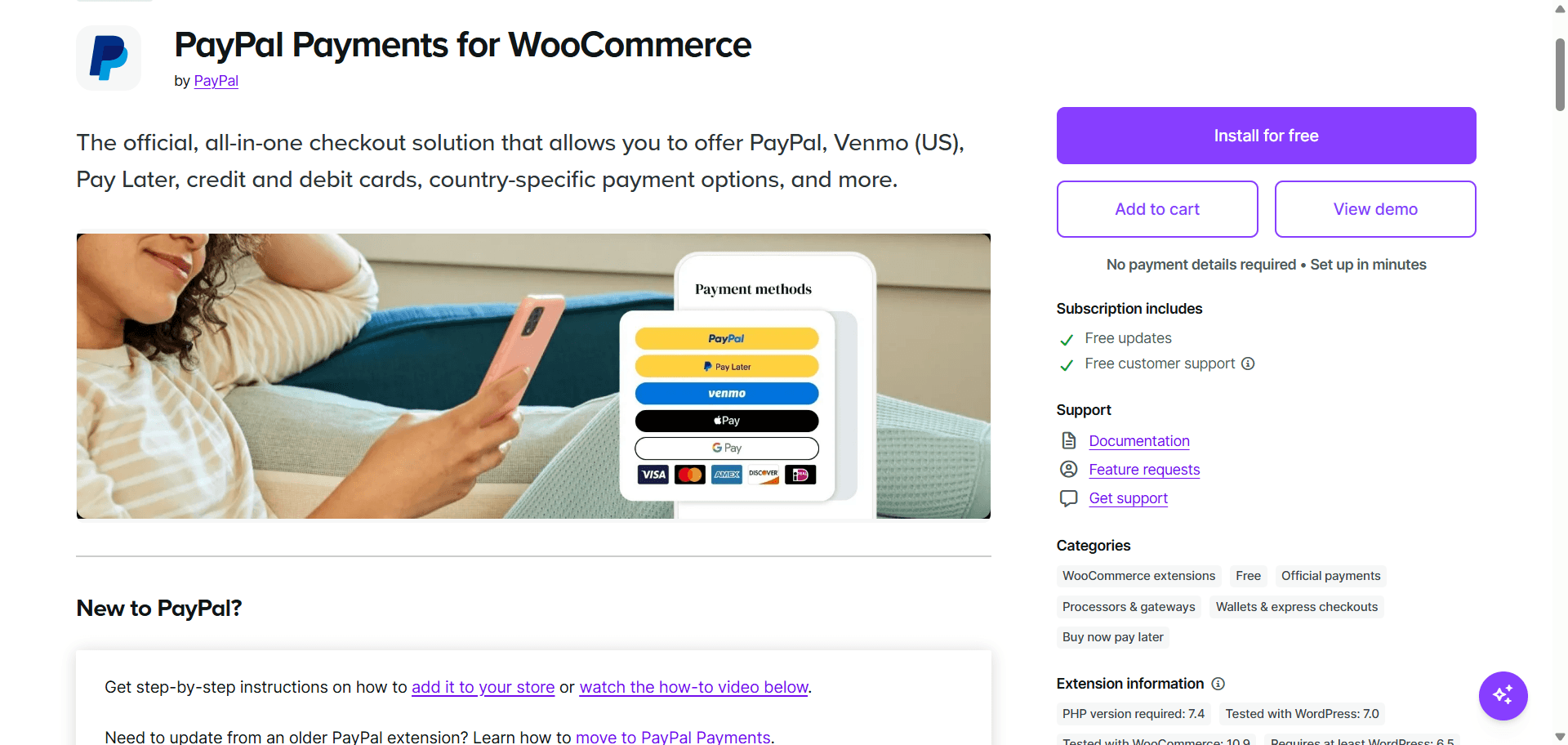
16. WooCommerce PayPal Payments
Give customers the payment option millions already know and trust.
Popularity Snapshot
↓
800K+
Active Installations
WordPress.org
★
2.8/5
Average Rating
574 Reviews
↻
Active
Actively Maintained
Frequent updates
$
Free
Free to Start
Free only
Best For
PayPal payments
Stores where buyer trust in a recognizable payment brand matters.
Good Alternative
WooCommerce Stripe Gateway
If PayPal isn’t a priority for your customer base.
Why it’s popular: A large share of online shoppers still specifically look for a PayPal button at checkout, and this is the official way to offer it.
PayPal Payments for WooCommerce adds PayPal, along with Pay Later and card processing through PayPal’s own infrastructure, as a checkout option. It’s maintained directly by PayPal for compatibility with current WooCommerce versions.
For some shoppers, seeing a PayPal option at checkout is a trust signal in itself, particularly for larger purchases or first-time visits to a new store.
Worth knowing: Running it alongside Stripe or WooPayments is common and generally not a conflict, they’re two separate options in the same checkout, not competing plugins.
My take: Worth adding alongside a card processor, not instead of one. Different shoppers default to different payment habits.
Email Marketing Plugins for WooCommerce
17. MailPoet
Design, send, and automate WooCommerce emails without leaving your WordPress dashboard.
Popularity Snapshot
↓
500K+
Active Installations
WordPress.org
★
4.4/5
Average Rating
1431 Reviews
↻
Active
Actively Maintained
Frequent updates
$
Free
Free to Start
Pro starts at ~$10/month
Best For
In-dashboard email & automation
Stores that want newsletters and WooCommerce automations without a separate external platform.
Good Alternative
Omnisend
For deeper ecommerce-specific automation and SMS, at the cost of a connected external platform.
Why it’s popular: It’s the most-installed WordPress-native email plugin, and being owned by Automattic keeps it tightly integrated with WooCommerce itself.
MailPoet builds newsletters and automated emails, welcome series, abandoned cart recovery, post-purchase follow-ups, right inside wp-admin, using either MailPoet’s own sending service or your own SMTP. WooCommerce-specific segmentation lets you target by order count, spend, or product category without exporting data anywhere.
For store owners who’d rather not manage a separate marketing platform login, MailPoet keeps subscriber data and email design in the same place as the rest of the store.
Worth knowing: Automation is basic compared to dedicated ecommerce platforms, no complex behavioral branching, and some paid features (win-back campaigns, review follow-ups) require a subscriber-based Premium plan starting around $10/month.
My take: A good default if you want to keep email in-house and your automation needs are simple. Move to Omnisend once you need more sophisticated flows or SMS.
Also Worth Considering
Mailchimp for WooCommerce
is the simplest starting point if you’re already on Mailchimp’s free tier
and don’t yet need ecommerce-specific automation.
Analytics & Tracking Plugins for WooCommerce
18. Site Kit by Google
Google’s own tools, inside your WordPress dashboard.
Popularity Snapshot
↓
5M+
Active Installations
WordPress.org
★
4.2/5
Average Rating
1,008 Reviews
↻
Active
Actively Maintained
Frequent updates
$
Free
Free to Start
Free only
Best For
Core Google data & analytics
Store owners who want core Google data without a third-party layer on top.
Good Alternative
MonsterInsights
For more WooCommerce-specific reporting inside the dashboard.
Why it’s popular: It’s free, official, and connects Google Analytics 4, Search Console, AdSense, and PageSpeed Insights without leaving wp-admin.
Site Kit pulls data from Google Analytics 4, Search Console, and (if relevant) AdSense directly into a WordPress dashboard widget. It also surfaces Core Web Vitals scores per page using PageSpeed Insights data, without a separate account or API key setup.
It’s built and maintained by Google itself, which means fewer compatibility surprises and no subscription cost.
Worth knowing: Reporting is closer to a summary than a deep-dive tool. For ecommerce-specific reports (revenue by product, checkout funnel drop-off) inside WordPress, MonsterInsights goes further.
My take: Install this first since it’s free and official. Add MonsterInsights only if you need WooCommerce-specific reporting Site Kit doesn’t cover.
19. MonsterInsights
GA4 data translated into something a store owner can actually use.
Popularity Snapshot
↓
2M+
Active Installations
WordPress.org
★
4.5/5
Average Rating
3,147 Reviews
↻
Active
Actively Maintained
Frequent updates
$
Free
Free to Start
Pro starts at $199/year
Best For
Ecommerce reporting
Store owners who want ecommerce reporting without leaving WordPress.
Good Alternative
Site Kit by Google
For a free, official alternative with lighter reporting.
Why it’s popular: It turns raw Google Analytics data into WooCommerce-relevant reports, top products, checkout behavior, without requiring the store owner to learn GA4’s interface.
MonsterInsights connects to Google Analytics and surfaces reports built specifically around WordPress and WooCommerce use cases: top-selling products, conversion rate, checkout funnel steps, and referral sources, all inside the WordPress dashboard.
GA4’s own interface has a real learning curve. MonsterInsights translates that data into reports a store owner can actually read without training.
Worth knowing: Ecommerce tracking and the more detailed WooCommerce reports require the paid version. The free tier covers basic traffic reporting only.
My take: Worth the upgrade specifically for the ecommerce report set, that’s the feature GA4 makes needlessly hard to see clearly on its own.
Security & Reliability Plugins for WooCommerce
20. Wordfence
Your store’s first line of defense against hackers, malware, and bad logins.
Popularity Snapshot
↓
5M+
Active Installations
WordPress.org
★
4.7/5
Average Rating
4,974 Reviews
↻
Active
Actively Maintained
Frequent updates
$
Free
Free to Start
Pro starts at $149/year
Best For
Malware scanning & brute-force protection
Store owners who want to scan for malware and block brute-force login attempts.
Good Alternative
Sucuri
For managed firewall protection at the DNS level instead of the plugin level.
Why it’s popular: A firewall, malware scanner, and login protection in one plugin, backed by a threat intelligence team that publishes vulnerability research across the whole plugin ecosystem.
Wordfence runs a web application firewall, scans site files for malware and known vulnerabilities, and enforces login protections like rate limiting and two-factor authentication. Its threat intelligence team also tracks vulnerabilities across other WordPress plugins, useful context even beyond Wordfence itself.
The free tier already covers the fundamentals most stores need: firewall, scanning, and login hardening, without a subscription.
Worth knowing: Two-factor authentication and advanced hardening features are Premium, from $149/year. Running a full scan on a large store can also be resource-intensive on shared hosting.
My take: A reasonable default for day-one security. Configure login attempt limits immediately, that alone stops a large share of automated attacks.
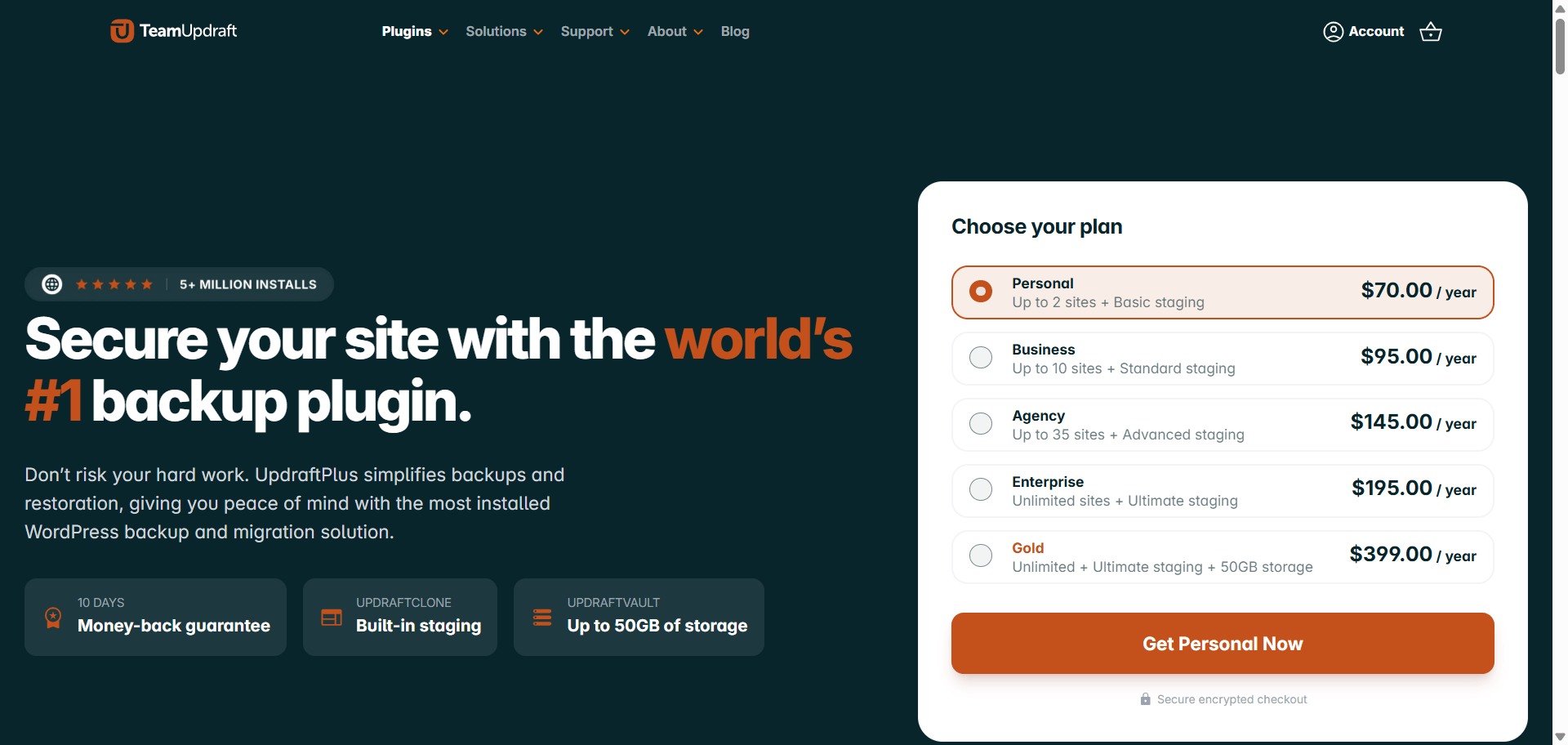
21. UpdraftPlus
Back up your store before something goes wrong, not after.
Popularity Snapshot
↓
3M+
Active Installations
WordPress.org
★
4.8/5
Average Rating
8,606 Reviews
↻
Active
Actively Maintained
Frequent updates
$
Free
Free to Start
Pro starts at $70/year
Best For
Automated off-site backups
Store owners who want scheduled backups stored safely off-site.
Good Alternative
All-in-One WP Migration
If moving between hosts matters as much as having reliable backups.
Why it’s popular: It’s the most widely used scheduled backup plugin, with support for every major remote storage provider.
UpdraftPlus backs up your site’s files and database on a schedule (daily, weekly, or otherwise) and stores copies remotely: Google Drive, Dropbox, Amazon S3, or others. Restoring from a backup is a one-click process from inside the plugin.
The free version already covers what most stores need: scheduled backups, remote storage, and one-click restore, without a subscription.
Worth knowing: Incremental backups (only backing up what changed since the last run) and multisite support are Premium features, from roughly $70/year.
My take: There’s no good reason to run a store without this, or something equivalent, active. A missed backup is the most avoidable disaster in ecommerce.
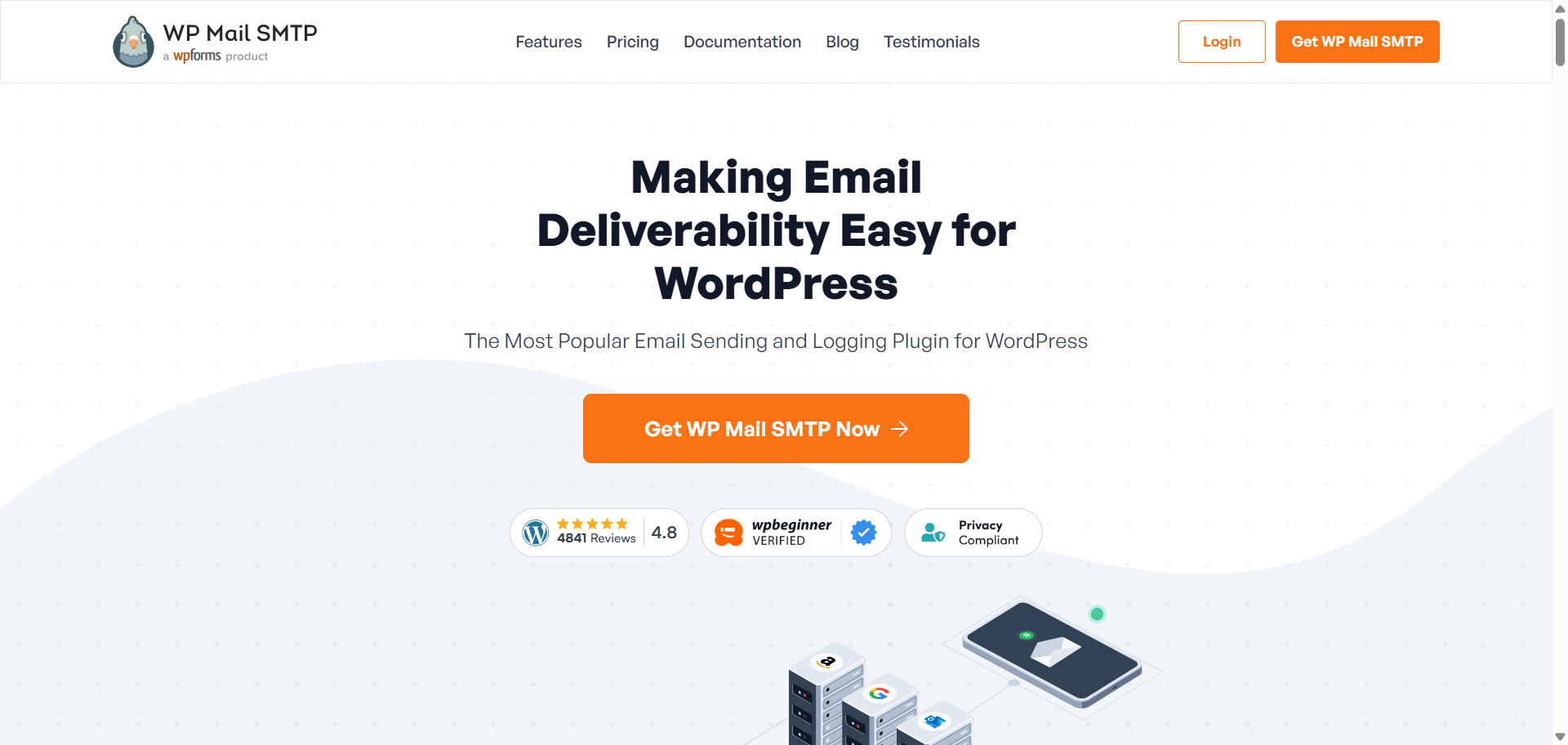
22. WP Mail SMTP
Make sure the emails your store sends actually reach your customers.
Popularity Snapshot
↓
4M+
Active Installations
WordPress.org
★
4.8/5
Average Rating
5,173 Reviews
↻
Active
Actively Maintained
Frequent updates
$
Free
Free to Start
Pro starts at $99/year
Best For
Reliable transactional emails
Store owners who want order confirmations and password resets to reliably reach customers.
Good Alternative
FluentSMTP
A free alternative with more email provider integrations built in.
Why it’s popular: WordPress’s default email sending is unreliable, and this plugin fixes it by routing mail through a proper SMTP or API-based provider.
By default, WordPress sends email through PHP’s mail function, which many inbox providers flag as spam or block outright. WP Mail SMTP reroutes outgoing mail through a proper email service (Gmail, Outlook, SendGrid, and others), which dramatically improves deliverability.
For a WooCommerce store specifically, this is often the fix for the single most damaging silent failure: order confirmation and shipping emails not reaching customers at all.
Worth knowing: Some providers cap free-tier sending volume, so a high-order-volume store may need a paid email service behind this plugin, not just the plugin itself.
My take: If you’ve never checked whether your WooCommerce order emails are landing in spam, check today. This plugin is usually the fix.
Popular Doesn’t Mean You Need It
Just because everyone uses it doesn’t mean you should. Here’s how to decide what actually belongs in your store.
More plugins ≠ a better store
Every plugin on this list adds code that runs on every page load. Installing all 22 “because they’re popular” is a worse decision than picking the five that solve problems you actually have. A store running fewer, well-chosen plugins usually outperforms one running twenty half-configured ones.
Don’t install two plugins for the same job
Running two caching plugins, or two SEO plugins, at once doesn’t stack their benefits, it causes conflicts. Pick one plugin per job category and commit to it.
Choose the problem before the plugin
Start from what’s actually broken or missing: checkout abandonment, slow load times, order emails not arriving, then find the plugin built for that problem. Working backward from a “best plugins” list without a specific problem tends to add bloat instead of fixing anything.
When a smaller plugin can be the better choice
A focused plugin that does one job well, like Better Badge for product badges rather than an all-in-one conversion suite, is often lighter and easier to troubleshoot than a bundled tool trying to do five things at once. Bigger install counts reflect adoption, not always fit for your specific store.
How to Choose a WooCommerce Plugin
Once you know what you need, use these checks to make sure the plugin is actually worth installing.
Check how actively it’s maintained
A plugin last updated two years ago is a compatibility risk waiting to happen, especially with WooCommerce’s own frequent updates.
Look beyond the star rating
A 4.9★ rating from 40 reviews carries less weight than a 4.5★ rating from 7,000. Read a handful of recent reviews, not just the average.
Check WooCommerce and theme compatibility
Confirm the plugin lists compatibility with your current WooCommerce version, and test on staging before activating on a live store.
Understand what’s actually free
Many plugins market themselves as free but gate the features you actually need behind Pro. Read the comparison table on the plugin’s own pricing page before assuming.
Check support and documentation
A plugin with an active support forum, or dedicated documentation, saves hours the first time something breaks.
Test before putting it on a live store
Always test a new plugin on a staging environment first. This matters even more for anything touching checkout or payments.
Final Takeaway
The plugins on this list have become popular for a reason: store owners keep using them because they solve problems that come up again and again in WooCommerce. That doesn’t mean every plugin belongs on your store.
Popularity is a starting point for research, not a decision by itself.
And that brings us back to where we started: how many of these plugins did you recognize?
If you knew most of them, that’s a pretty good sign that you’ve been around the WooCommerce ecosystem for a while. But knowing a plugin is popular doesn’t mean you need it.
Match each plugin to the specific problem your store has right now, check that it’s actively maintained, and resist the urge to install more than you need.
FAQs
What are the most popular WooCommerce plugins?
Some of the most widely used WooCommerce plugins include Elementor, Yoast SEO, Rank Math, LiteSpeed Cache, WPForms, Wordfence, WooPayments, and WP Mail SMTP. The right choice depends on what your store actually needs rather than install count alone.
What plugins should every WooCommerce store have?
There is no universal must-have plugin stack, but most stores need solutions for SEO, performance, security, backups, email deliverability, analytics, and payments. Start with those core needs before adding conversion or marketing plugins.
How many plugins should a WooCommerce store have?
There is no ideal plugin limit for WooCommerce. A store can run smoothly with 10 plugins or struggle with 30, depending on plugin quality, configuration, hosting, and how much code each plugin loads.
What are the best free WooCommerce plugins?
Popular free options include Rank Math, LiteSpeed Cache, Wordfence, UpdraftPlus, Site Kit by Google, WP Mail SMTP, and WooPayments. Many offer paid upgrades, but their free versions can cover the core needs of a small store.
What are the best WooCommerce plugins for increasing sales?
Conversion-focused plugins such as Better Badge, YITH WooCommerce Wishlist, OptinMonster, FunnelKit, and CartFlows can help with product visibility, lead capture, checkout optimization, and repeat purchases. The best option depends on where customers are dropping out of your buying journey.
What are the best WooCommerce plugins for SEO?
Yoast SEO and Rank Math are two of the most popular SEO plugins for WooCommerce. Both handle essential on-page SEO and structured data, while Rank Math generally offers more advanced features in its free version.
What are the best WooCommerce plugins for speed and performance?
LiteSpeed Cache is a strong free choice for stores hosted on LiteSpeed servers, while WP Rocket is popular with store owners who want a simpler premium setup. Your hosting stack should be the first thing you check before choosing a caching plugin.
What are the best WooCommerce plugins for checkout optimization?
CartFlows and FunnelKit are two of the leading WooCommerce options for customizing checkout flows, order bumps, upsells, and funnels. FunnelKit is particularly useful if you also want automation and follow-up workflows.
What are the best WooCommerce plugins for payments?
WooPayments, WooCommerce Stripe Gateway, and WooCommerce PayPal Payments are among the most widely used payment options. The best gateway depends on your country, supported payment methods, transaction fees, and the payment providers your customers already trust.
Do too many WooCommerce plugins slow down a website?
They can, but the number of plugins alone doesn’t determine performance. Poorly coded plugins, overlapping functionality, database queries, third-party scripts, and plugins loading unnecessary assets can have a much bigger impact than simply having a larger plugin count.
Can I use two WooCommerce plugins that do the same thing?
You generally shouldn’t. Running multiple SEO, caching, payment, or checkout plugins that modify the same functionality can create conflicts, duplicate features, and unpredictable behavior.
How do I know if a WooCommerce plugin is worth installing?
Look at more than active installations: check recent updates, WooCommerce compatibility, support activity, reviews, documentation, pricing, and whether the plugin actually solves a problem your store has. A less popular plugin can be a better choice when it fits your specific use case.
Most WooCommerce product labels plugins can add a Sale, New, or Best Seller label to a product image. That is the easy part. The real difference shows up when discounts change, stock drops, new products stop being new, promotions expire, or you need to manage badges across hundreds of products without updating them one by […]
Not every plugin makes the cut as a must-have WordPress plugin for ecommerce. Some are nice extras. Others are what keep an ecommerce store secure, fast, functional, and ready to sell. A plugin that adds confetti when someone clicks “Add to Cart” is fun. But it comes after the basics: security, backups, performance, SEO, checkout, […]
You have finally launched your Woo store, started getting decent traffic, but are not getting sales. Sounds familiar? 90% of eCommerce businesses fail due to various reasons. Paid ads can bring you traffic, but whether customers will buy from you or not depends on your in-store experience. Around 70% online customers abandon their carts due […]












 Samia Nasreen
23 min read
Samia Nasreen
23 min read