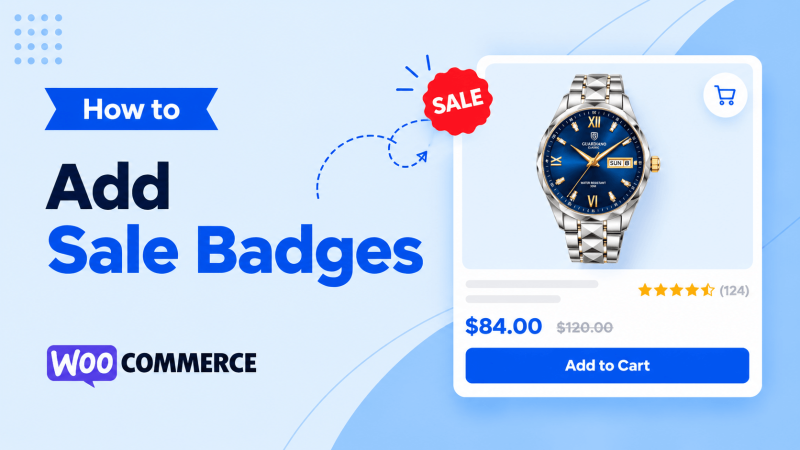
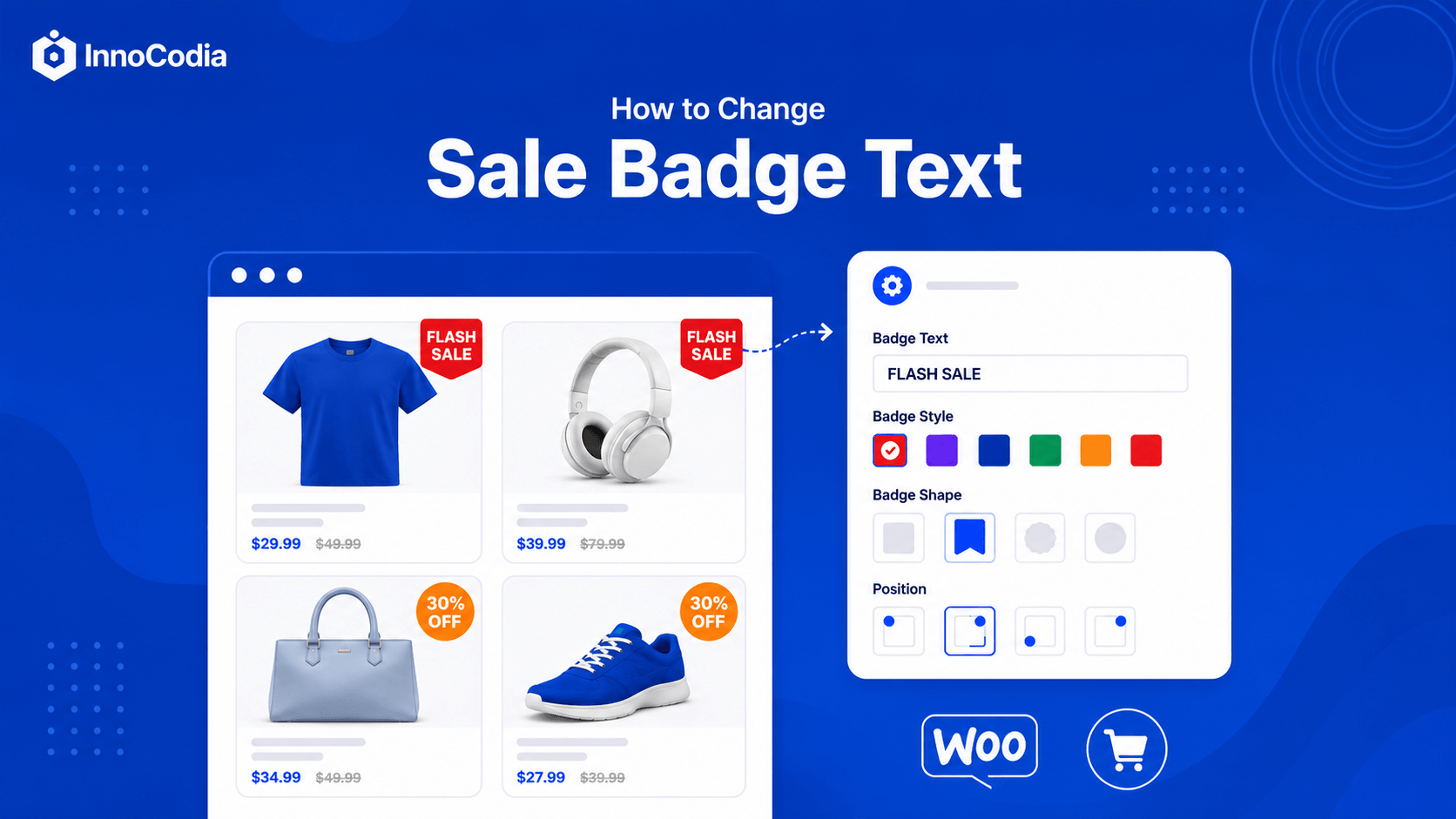
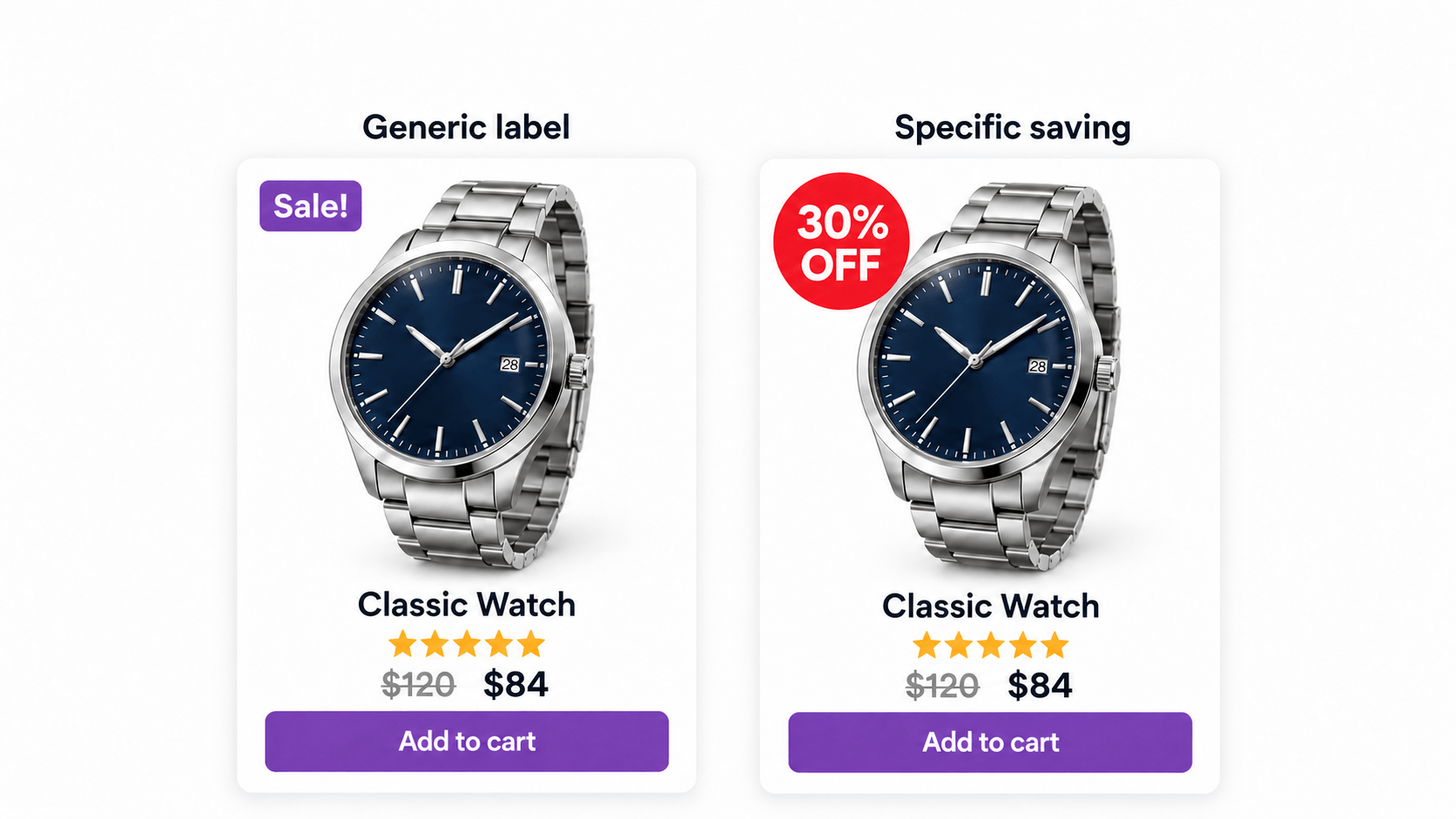
Picture two products in a WooCommerce shop. Both are discounted. One has a badge that says “Sale!” The other says “30% OFF.” Which one tells you more before you even look at the price?
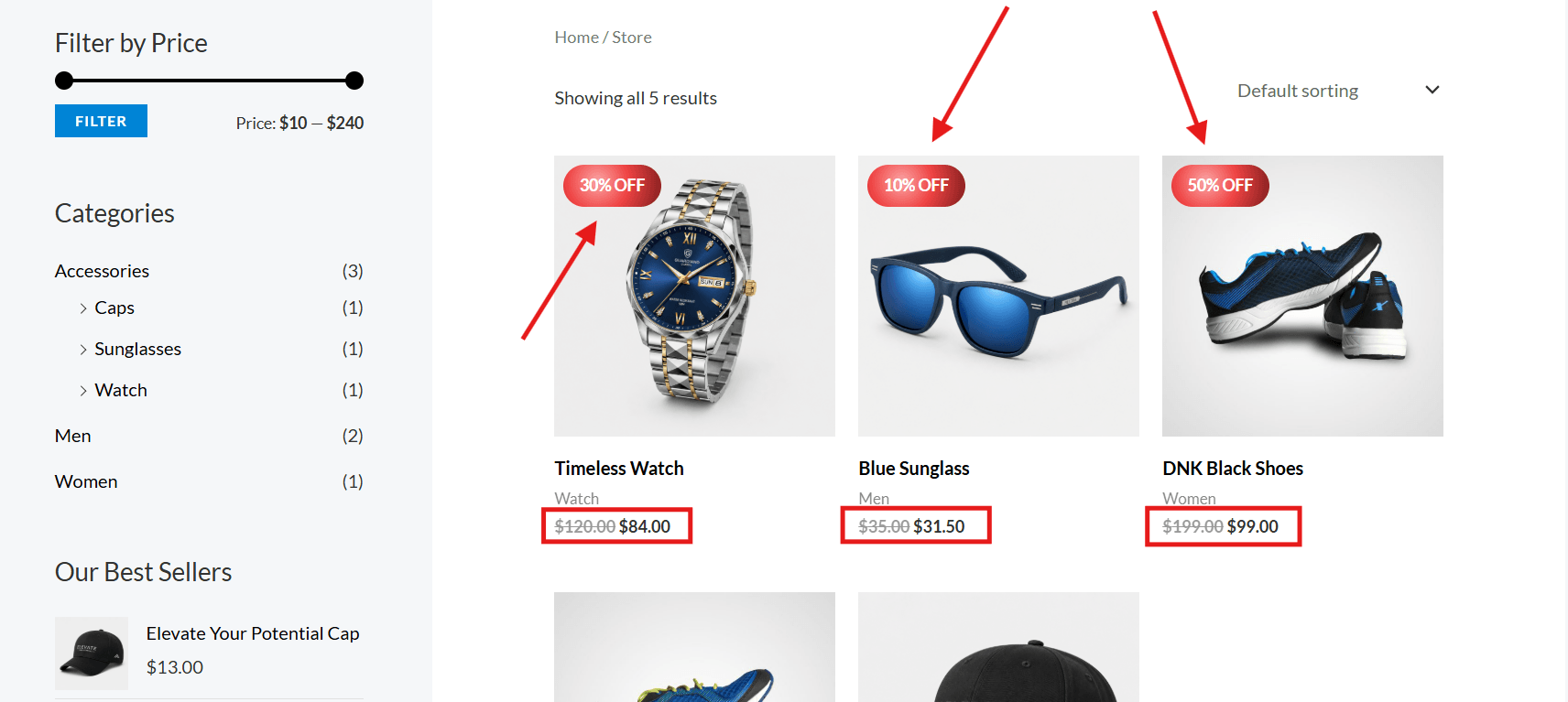
If a product drops from $120 to $84, the second badge answers the question immediately. In this guide, I’ll show you how to display a WooCommerce percentage discount badge, so shoppers can see the actual saving instead of a generic sale label.
We’ll set up the prices first, walk through a no-code method and a code method, and cover what happens when a product has several variations.
What Is a WooCommerce Percentage Discount Badge?
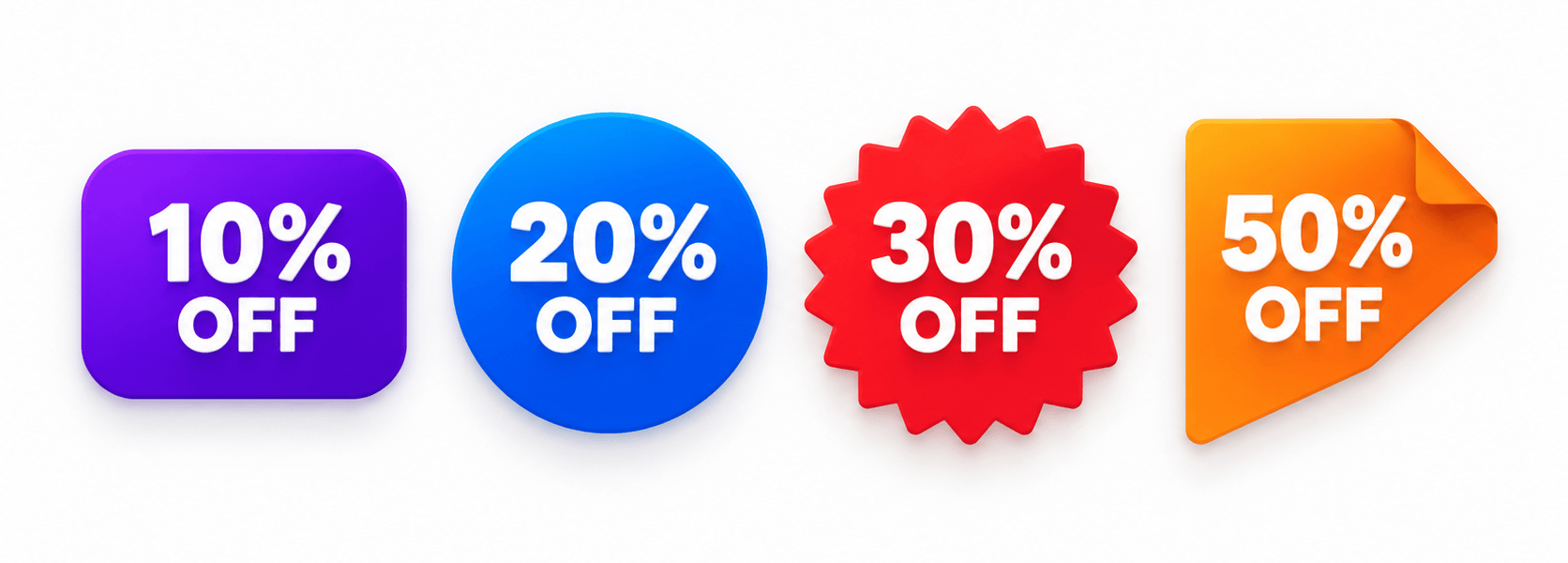
A percentage discount badge is a label on a product that shows how much its sale price has dropped compared with its regular price. It might say 20% OFF, Save 30%, or 50% OFF on a shop card or product page.
For a $120 product on sale for $84, that’s ($120 − $84) ÷ $120 × 100 = 30%.
WooCommerce can show its default “Sale!” badge when a product is on sale, but that badge doesn’t tell shoppers the percentage. You’ll need a badge plugin or a small code customization to show the number on the badge.
Why Show the Discount Percentage Instead of Just “Sale!”?
“Sale!” tells shoppers a product is discounted. “30% OFF” tells them how much. That is especially useful on a shop or category page, where someone may be comparing several products quickly.
There is research behind making that information easy to find. In Baymard Institute’s product-page usability testing, shoppers missed or misunderstood promotions when discount information was hard to find or separated from the price. Baymard recommends highlighting the percentage or amount saved.
The takeaway is to make the saving clear. A percentage badge can help communicate the offer, but adding one does not guarantee a higher conversion rate.
“% OFF” or “Save $”: Which Should You Show?
For lower-priced products, a percentage is often a useful starting point. For higher-priced products, the amount saved may make the offer feel more substantial.
Consider a $40 product reduced to $30. 25% OFF may feel more striking than Save $10. On a $1,000 product reduced to $900, Save $100 may communicate the value better than 10% OFF. Both formats describe the same saving; they simply draw attention to different numbers.
Treat that as a starting point, not a fixed rule. Your products, currency, and audience all matter, so test which format works better for your store.
If there is enough room, you can show both. A product-image badge usually works best with a short message, while the amount saved can sit beside the regular and sale prices. No need to squeeze the whole calculation into a tiny circle.
Whichever format you choose, keep it accurate for the products receiving the badge. “50% OFF” should not appear across an entire campaign just because one item has that discount.
Before You Start: Set the Regular and Sale Prices
A percentage badge displays a discount that’s already in your product pricing. It doesn’t create or apply the discount.
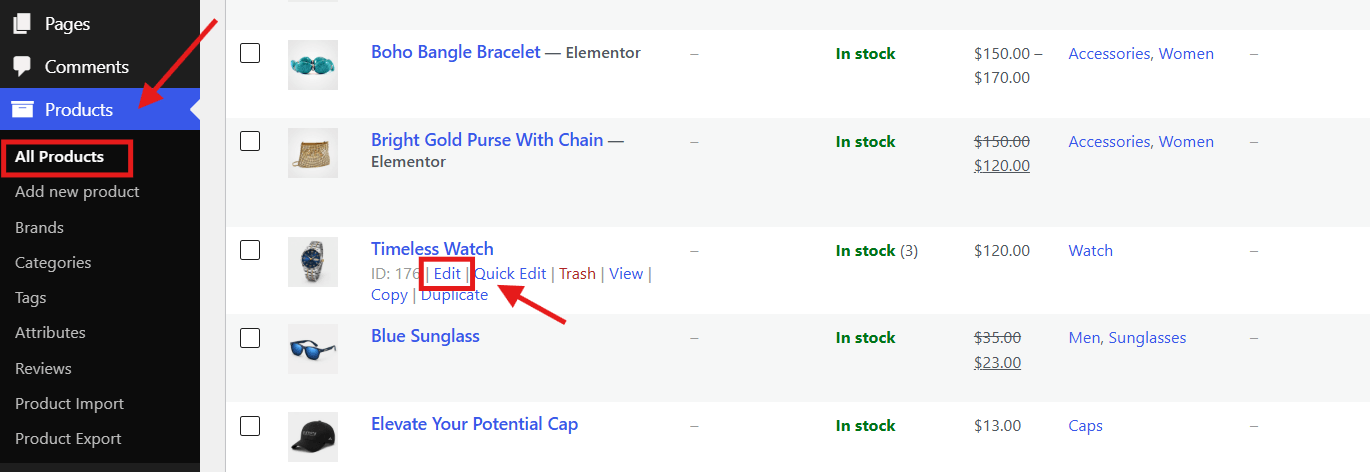
For one simple product, go to Products → All Products, edit the product.
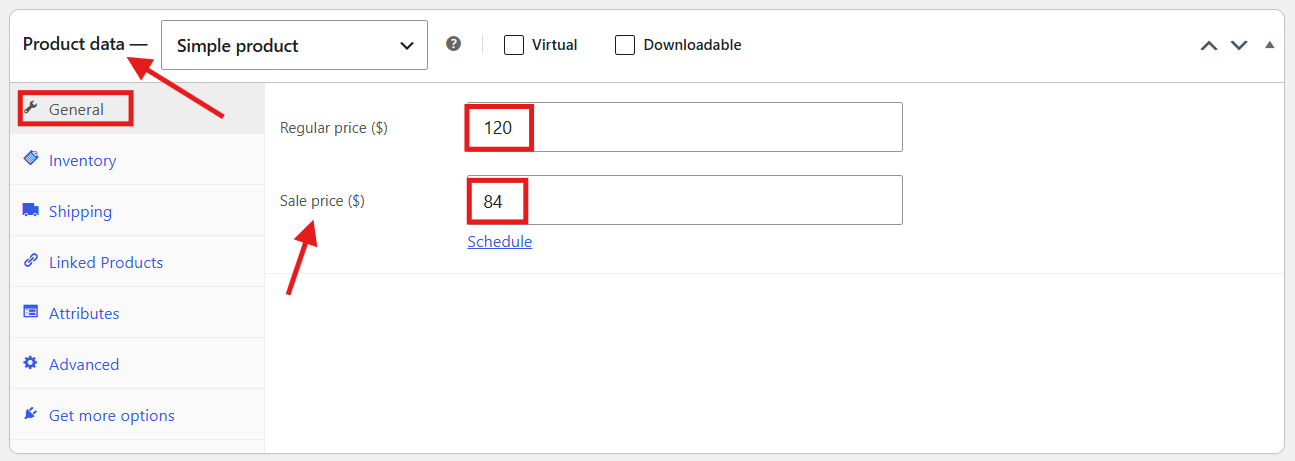
Scroll down and look under Product data → General. Enter its Regular price and a lower Sale price, then update the product.
Applying the same percentage to several products? You can use WooCommerce’s built-in bulk editor. In Products → All Products, select the products, choose Edit from Bulk actions, and click Apply. Under Sale, choose Set to regular price decreased by (fixed amount or %), enter a value such as 30%, and update.
This creates sale prices 30% below each selected regular price. WooCommerce notes that this bulk editor works best with simple products and cannot handle the full complexity of variable products. Review the selected products and their resulting prices before you use the badges in a campaign. WooCommerce’s bulk editing documentation explains the available options.
Now that the prices are ready, let’s put the percentage where shoppers can see it.
How to Display Discount Percentage Badges in WooCommerce
There are two practical routes: use a badge plugin or customize the WooCommerce sale badge with code. Both give you control, but code means managing changes across PHP and CSS, while a plugin brings the controls together in an easy-to-use interface.
I’ll start with the plugin method.
Method 1: Display Discount Percentage Badges With a Plugin
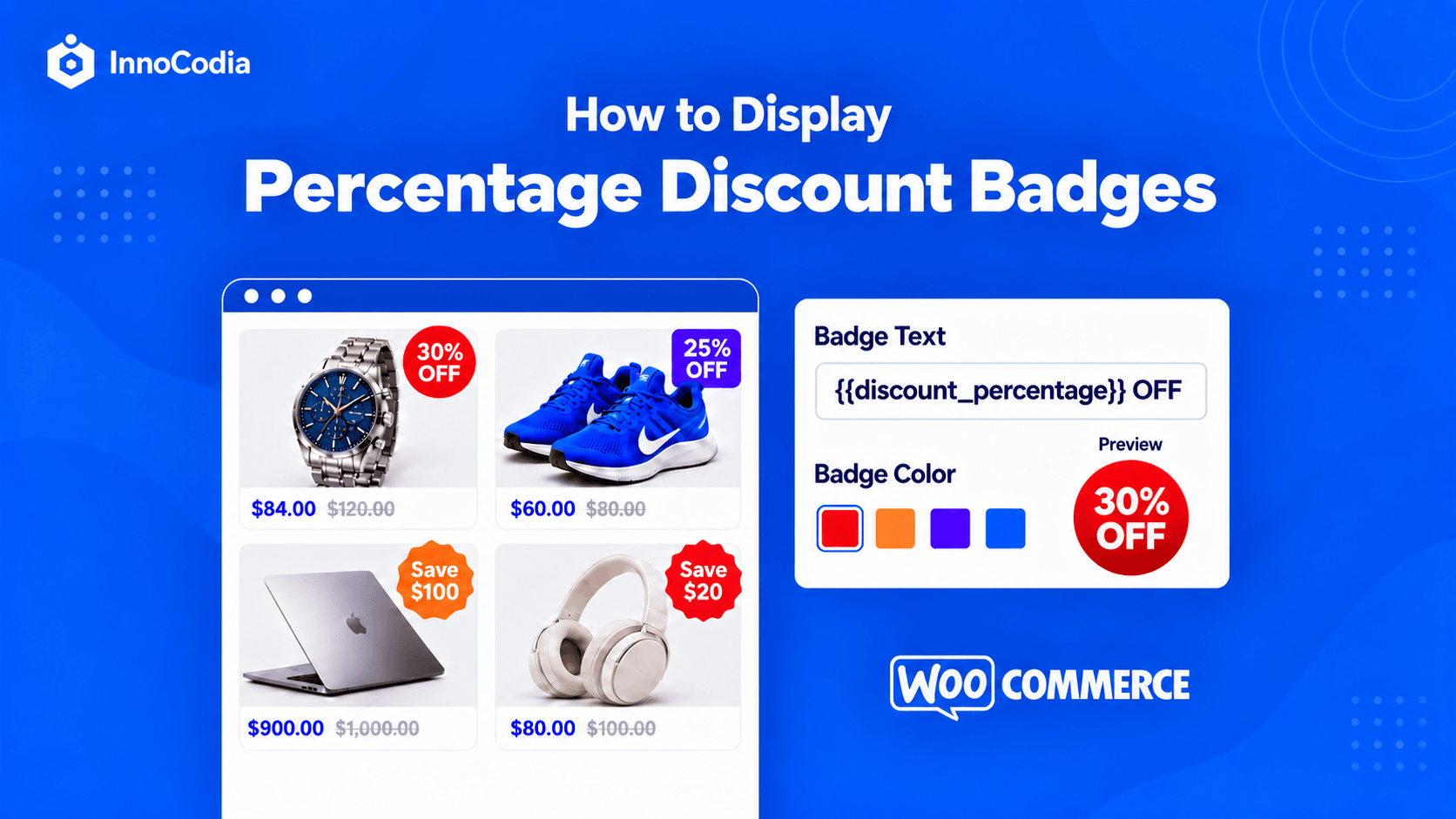
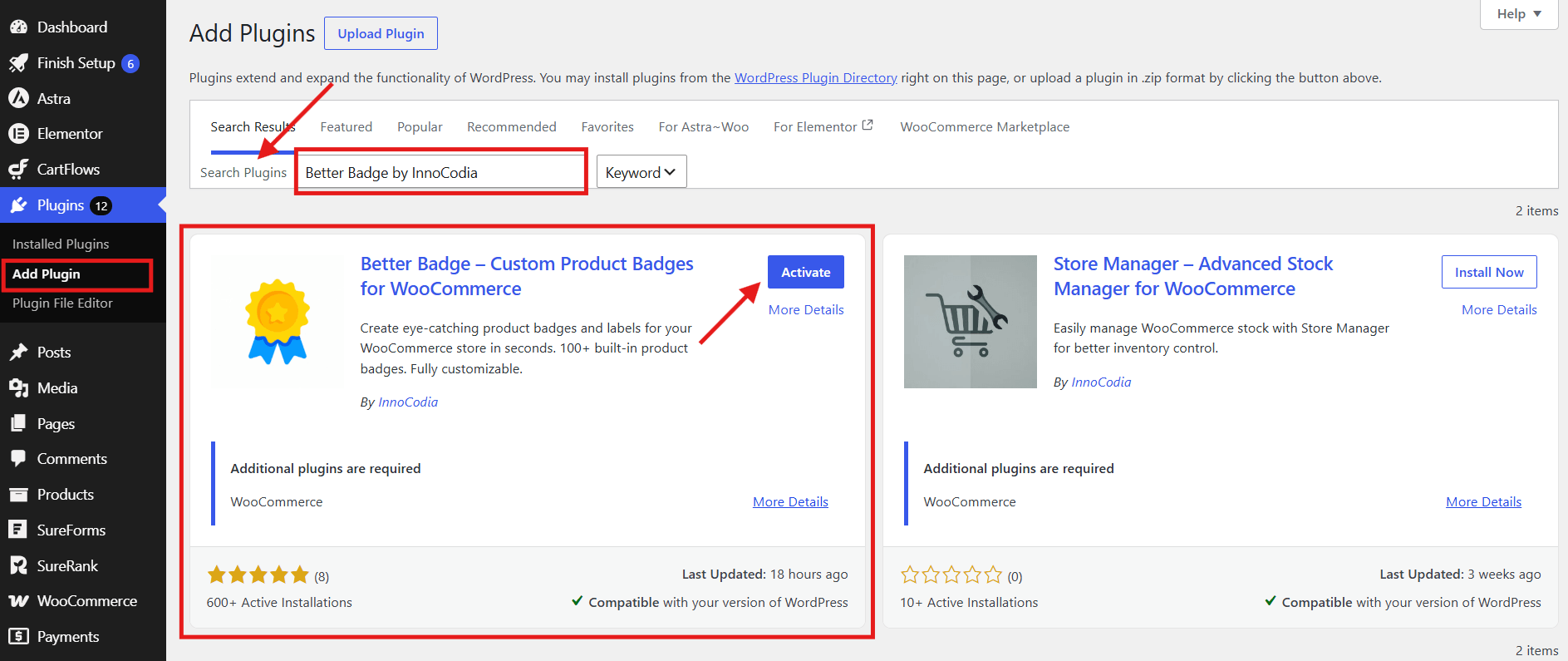
I use Better Badge for this setup. It lets you choose a template, customize the design and placement, and display each product’s calculated discount using the {{discount_percentage}} placeholder, available in Pro.
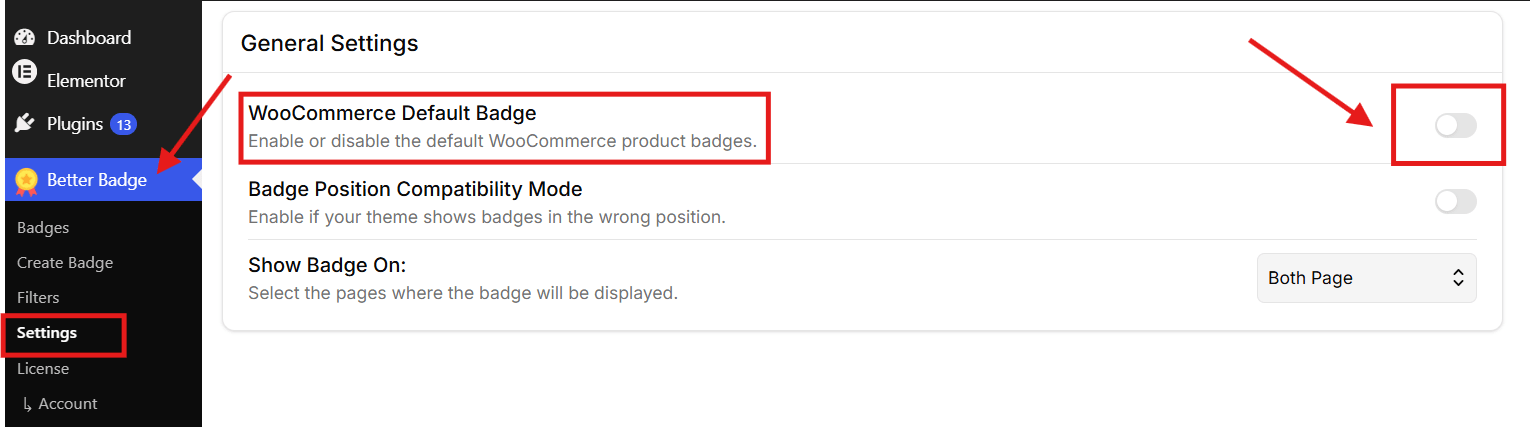
Go to Better Badge → Settings and turn off WooCommerce Default Badge. Otherwise a product could show both “Sale!” and your new “30% OFF” badge.
If you already use a custom badge or your theme supplies its own sale label, check those settings too before turning anything off.
Step 3: Create a new badge
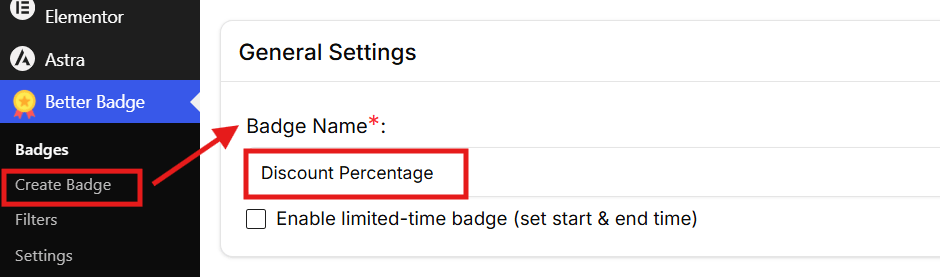
Go to Better Badge → Badges → Create New Badge or directly Better Badge→ Create Badge and enter “Discount Percentage” in the Badge Name field. The name is for your own reference; shoppers won’t see it.
Step 4: Choose which products get the badge
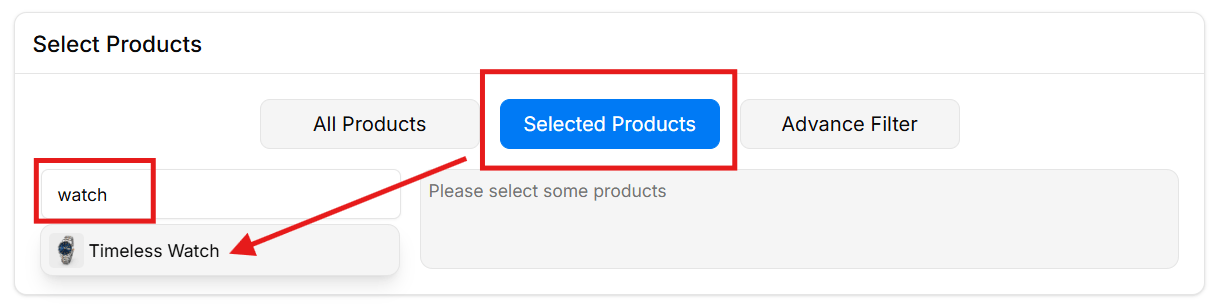
You can select specific products if you have only a few sale items.
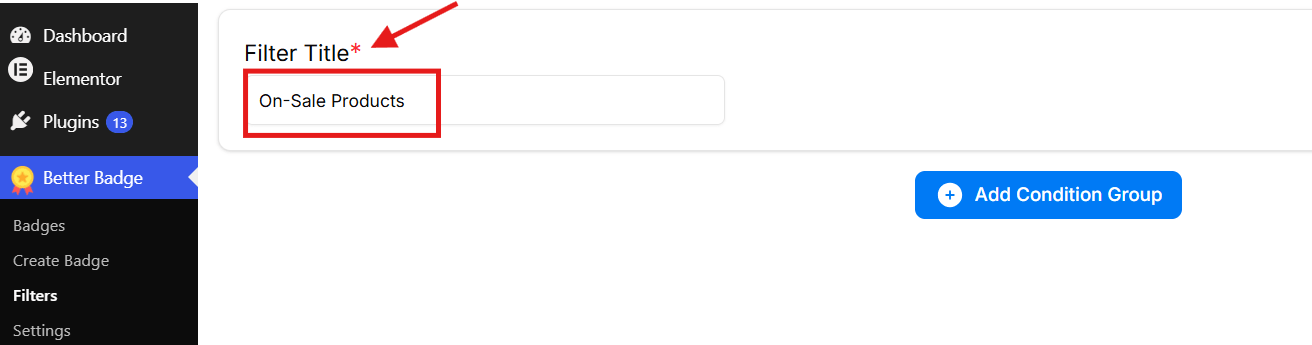
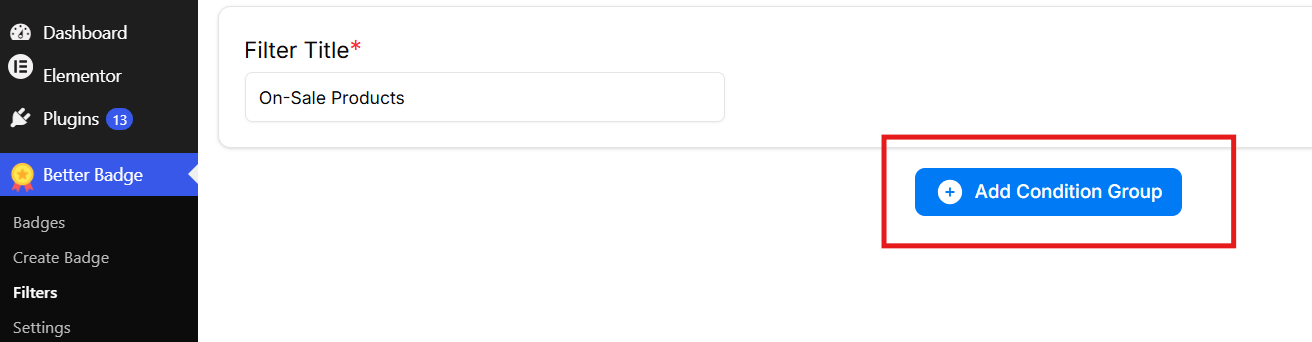
For a changing catalog, use a filter to apply the badge based on product pricing. Save your badge first, then go to Better Badge → Filters → New Filter and name it On-Sale Products.
Add a condition group.
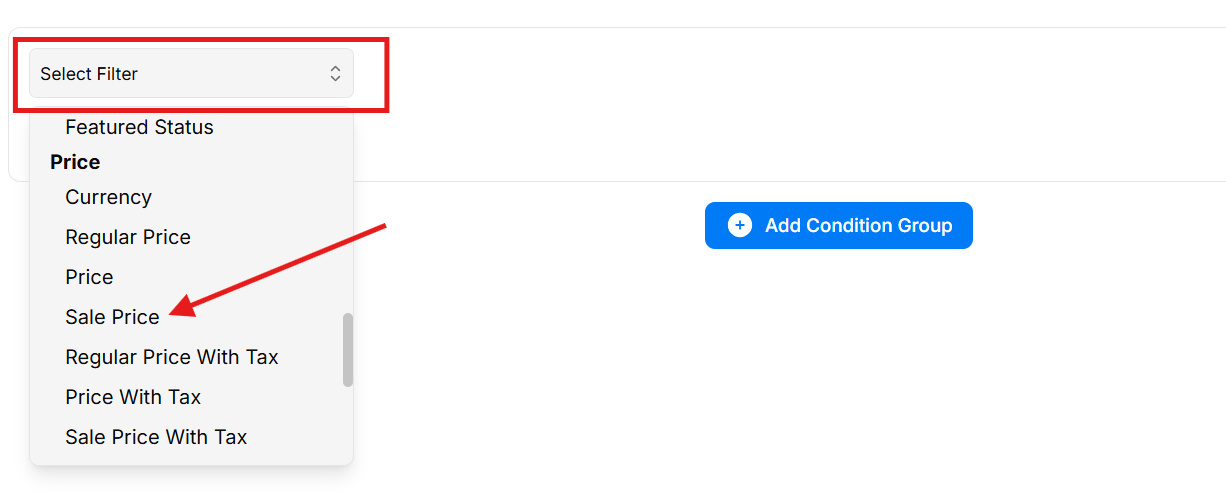
Select Sale Price, set it to Greater Than, and enter 0.
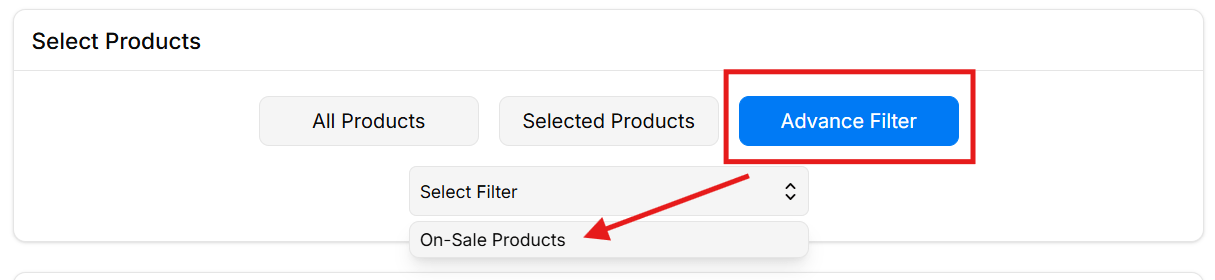
Save the filter, return to your badge, and select it in the Advanced Filter dropdown.
This condition applies the badge to every product with a sale price set above zero. Your campaign may need different rules, so you can adjust the conditions to control exactly which products get the badge.
Step 5: Enter the dynamic badge text
Clear the existing Badge Text and enter:
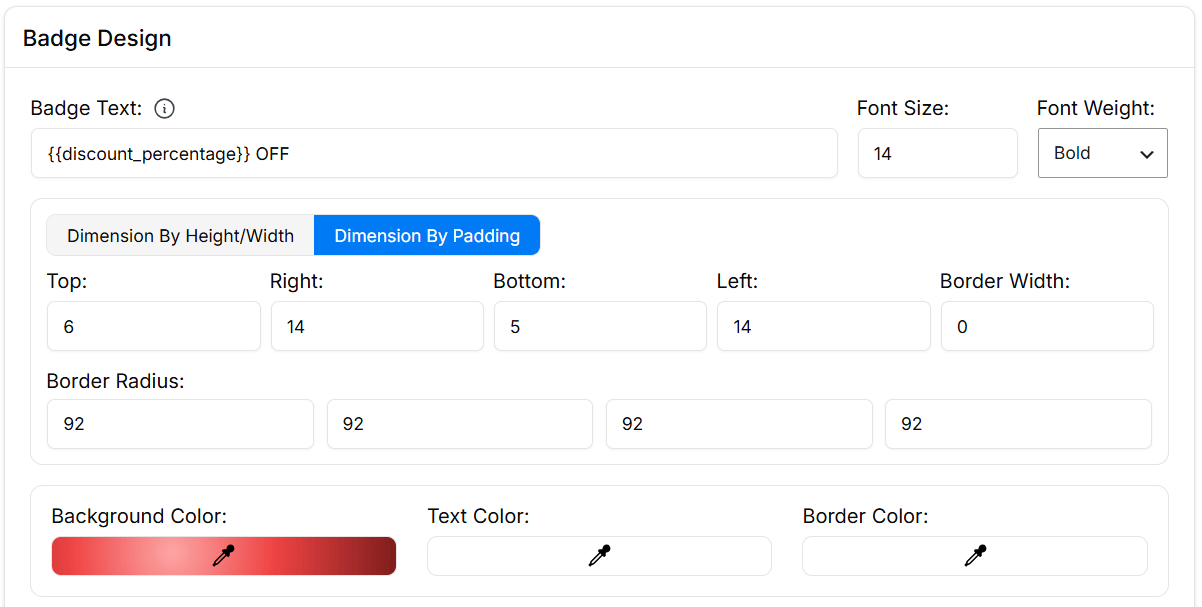
{{discount_percentage}} OFF
Use the preview to check the badge’s appearance. After saving, verify the percentage on your storefront: a product reduced from $100 to $70 should show 30% OFF, while one reduced from $80 to $40 should show 50% OFF.
Step 6: Choose a template and customize it
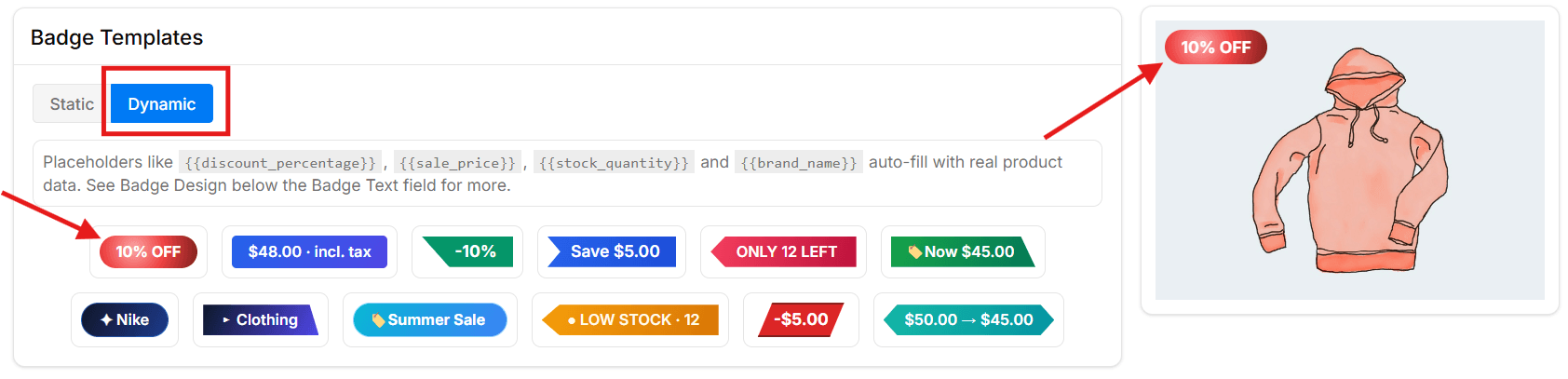
You can start with a ready-made percentage template, some of which already contain a dynamic value placeholder as you can find in the Dynamic tab under Badge Templates, or keep the badge you created from scratch.
Adjust the badge text, font size, weight, padding, dimensions, border, and colors to fit your store. A short message is easiest to scan. Give the number enough contrast against the background.
Step 7: Set the position
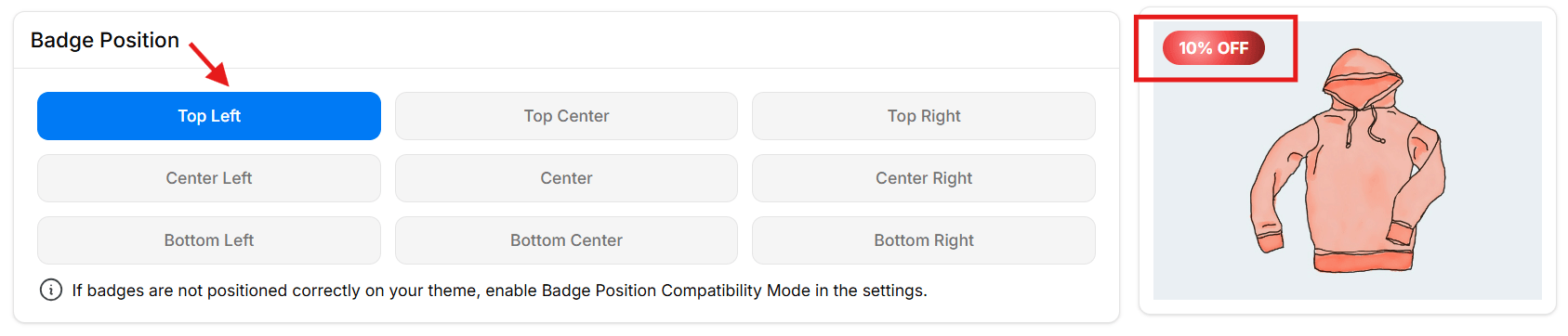
Choose where the badge appears on the product image. I chose Top Left for this example, provided it doesn’t cover an important part of the image or overlap another badge. And if badges are not positioned correctly on your theme, enable Badge Position Compatibility Mode in the settings.
You can also customize the badge’s shape and add animations. For a closer look at the design options and best practices, check out our guide on how to customize a WooCommerce sale badge.
Step 8: Save and check real products
Save the badge, then open at least two discounted products with different percentages on your shop page and individual product pages.
Confirm that each badge matches its regular and sale prices. Also check a full-price product, a mobile view, and any product grid made by your theme or page builder. If you change a sale price later, check that the badge updates after the site’s cache clears.
How to Display WooCommerce Percentage Discount Badge for Free
You can follow the same badge-creation steps with Better Badge Free. Instead of inserting the dynamic placeholder, simply type your percentage, such as “30% OFF,” then apply the badge to the relevant products.
This works well when your entire catalogue, or a selected group of products, has the same discount. One badge can cover them all. No need to make things more complicated than they are.
The difference is maintenance: if the discount changes, update the text. If a product no longer qualifies, remove it from the badge’s selection or stop displaying the badge. For a straightforward campaign with a consistent discount, the free option may be all you need.
Method 2: Change the WooCommerce Sale Badge With Code
If you’re comfortable maintaining a small PHP snippet, WooCommerce exposes the woocommerce_sale_flash filter for its classic sale-badge templates. The snippet below calculates a percentage for simple products.
For variable products, it chooses the largest discount among variations currently on sale and labels it “Up to X% OFF” so it doesn’t imply that every variation gets that discount.
Add this to a child theme’s functions.php or a PHP snippets plugin, ideally after testing on a staging copy.
This snippet works with WooCommerce’s classic sale badges on shop and product pages. Blocks, custom widgets, and theme overrides may display badges differently, so test the layouts you actually use. The snippet also calculates from native regular and sale prices; cart-only coupons or some third-party pricing rules may not be represented by those fields.
Style the Percentage Badge With CSS
For a red circular badge, add the following under Appearance → Customize → Additional CSS, or your theme’s custom CSS area:
Adjust the size, colors, and font to match your store. Longer text such as “Up to 35% OFF” may need a larger badge or smaller font. This also styles other sale badges using the same selector, so check both shop and product pages after saving.
Which method should you use? Choose a plugin if you want to change the badge’s design, position, and display rules through an easy-to-use dashboard. Use the code snippet if you’re comfortable editing PHP and only need to replace the default sale label with a percentage. With either method, make sure your regular and sale prices are correct, since they determine the discount shown.
What About Variable Products With Different Discounts?
A T-shirt might be 20% off in one size and 35% off in another. A single “35% OFF” label on the parent product could suggest every size has that discount.
For the parent product, “Up to 35% OFF” makes the offer clearer, provided 35% is the highest available discount. Keep each variation’s actual price visible when selected. If you cannot reliably represent the discounts in one number, a general “Sale” label works too.
How to Apply Badges to Variable Products With Better Badge
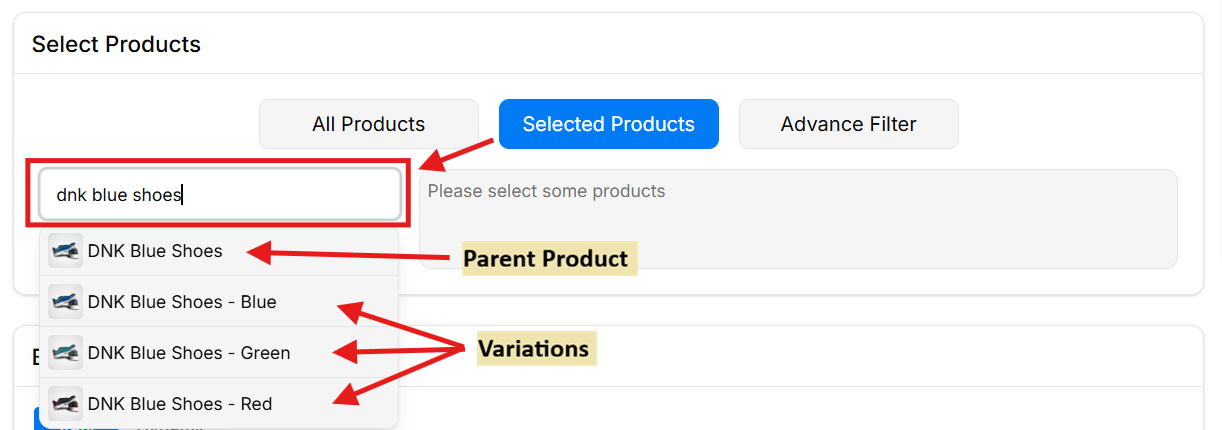
Under Select Products, choose Selected Products.
Search for the product name.
Select individual variations, such as DNK Blue Shoes – Blue, rather than the parent DNK Blue Shoes.
Add your badge text and save.
For a static “30% OFF” badge, select only variations with that discount. For dynamic text, use {{discount_percentage}} OFF, then check that each targeted variation displays the correct percentage.
For the parent product, create a separate badge, choose the parent under Selected Products, and manually enter “Up to 35% OFF”. Make sure 35% is the highest available discount, and update the text if that changes.
Finally, select both a discounted variation and a full-price variation on the storefront. Confirm that the badge and price accurately describe the selected option, especially if your setup changes the badge after a variation is selected.
Make Your Percentage Badge Easy to Read
Keep the wording short. “30% OFF” tells shoppers what they need at a glance. If you’re running a campaign, consider whether the campaign name belongs elsewhere rather than squeezing it into the same small label.
Make the percentage match the price. If your badge says 30% OFF, the displayed regular and sale prices should support it. Be especially careful with manually entered badges, currency conversion, coupons, and rounded prices.
Give it contrast and breathing room. Test the badge against light and dark product images, on desktop and mobile. A readable text label is more useful than a color alone, and a badge covering the product or price works against the point of adding it.
Avoid badge clutter. If you’re replacing WooCommerce’s default “Sale!” label, hide it. If you’re also showing “New” or “Low Stock,” make sure the labels don’t stack over one another. For more design options, see our guide to adding and customizing a WooCommerce sale badge.
Troubleshooting Percentage Discount Badges
The percentage is wrong. Recheck the regular and sale prices. If the product has variations, inspect each variation’s prices separately and confirm how the badge calculates its parent label. Check whether a discount comes from a coupon or pricing rule rather than the native sale price.
The badge isn’t showing. Make sure the sale is currently active, the product meets your badge targeting rule, and the badge is enabled for the page you’re viewing. Clear your site and browser cache, then check both the shop card and product page.
Two sale badges are showing. Hide WooCommerce’s default badge in Better Badge settings, then check whether your theme or another plugin also adds a sale label.
The code works on one page but not another. Check whether that page uses a block, page-builder widget, or theme override that doesn’t use the classic WooCommerce sale-flash template. A woocommerce_sale_flash snippet won’t necessarily control every custom product card.
Conclusion
A discount badge should answer a simple shopper question: how much am I saving? For a few products with the same discount, manually writing “30% OFF” can do the job. If prices vary across products or change over time, a dynamic percentage badge saves manual updates and helps keep the label aligned with the sale price.
Better Badge is my recommended option for managing both through an easy-to-use interface. Start with free custom text or choose Pro for dynamic percentages and more automation.
Set the prices first, choose the display method that fits your store, and check real products before the promotion goes live. The number only helps when shoppers can trust it.
Frequently Asked Questions
WooCommerce’s default sale badge does not display the calculated percentage. You can replace it using a badge plugin, custom code, or a theme that includes a percentage-badge option.
Yes. With Better Badge Free, enter text such as “30% OFF” and apply it to products with that discount. This works well when your whole catalogue or a selected group has the same percentage off.
You’ll need to update the text or product selection when the offer changes. Alternatively, the code method above calculates percentages without a paid badge plugin.
A static badge contains text you enter manually, such as “30% OFF.” That number stays the same until you edit it.
A dynamic badge calculates the percentage from product pricing data. Better Badge Pro uses {{discount_percentage}}, allowing one badge to display different percentages on different qualifying products.
With dynamic text, the percentage can update to reflect the new pricing. For example, changing a $100 product’s sale price from $70 to $80 changes the discount from 30% to 20%.
A manually entered “30% OFF” badge needs editing. If a dynamic badge still shows the old value, clear the relevant cache and check the storefront again.
Subtract the sale price from the regular price, divide the result by the regular price, and multiply by 100:
For a product reduced from $120 to $84, the discount is 30%. If the result includes decimals, the displayed percentage depends on how your plugin or code formats it.
In Better Badge, choose Selected Products, search for the product, and select the individual variations.
For static text, group variations with the same discount. For dynamic text, use {{discount_percentage}} OFF and check each targeted variation on the storefront.
You can also create a separate badge for the parent product with manually entered text such as “Up to 35% OFF,” provided 35% is the highest available discount. Update that text if the maximum discount changes.
Yes. Use category targeting or an appropriate product filter to select the products.
If the entire category has the same discount, a static percentage badge can work. If discounts vary, use dynamic text and suitable sale-related conditions. Category membership alone does not mean a product is discounted.
A badge calculated from regular and sale prices does not automatically include a coupon applied later in the cart or at checkout.
If you use a discount plugin, check its integration with your badge setup. Make any coupon or purchase conditions clear so shoppers understand how to receive the advertised saving.
Check the regular and sale prices first. For variable products, inspect the individual variations too.
If you entered the percentage manually, update the text. For dynamic badges, also check rounding, pricing-plugin behavior, and caching. Confirm that you are comparing the same prices and variation used to calculate the badge.
Check that the badge is saved, its schedule is valid, and the product matches its selection or filter. Also check the display settings for the page you’re viewing.
For the dynamic placeholder, confirm that Better Badge Pro is active. If the badge appears on one page but not another, inspect the theme or product-grid widget used on that page.
The original sale label is still being displayed alongside your custom badge.
In Better Badge → Settings, turn off WooCommerce Default Badge. If another label remains, check whether your theme or another plugin adds its own badge.
That depends on the badge’s targeting rules and schedule. Dynamic text controls the percentage shown; it does not by itself control when the badge appears.
A static badge assigned to selected products may remain until you remove it or its badge schedule ends. Check the storefront after the sale expires, including any cached pages.
No. The badge communicates the offer. The product’s sale price, pricing rule, or coupon determines what the shopper pays.
Set the discount first, then make sure the badge accurately describes it.
You want more orders this Black Friday, along with happy customers, manageable workloads, and fewer last-minute surprises. There is already plenty to prepare: offers, stock, emails, banners, shipping. It is easy to spend days promoting a sale and miss something small that stops people from buying. I want to help you catch those problems before […]
You put a product on sale. The old price gets crossed out, the new price appears, and the discount is technically right there. But shoppers don’t always stop to read the price. A sale badge gives them a quick visual cue that says, this product is on sale. And here’s the useful part: you don’t […]
Every promotion on your store ends up with the same badge. You’re running a flash sale, and the badge says “Sale!” It’s a summer sale, the badge still says “Sale!” You’re clearing out old stock. Same badge. Again. WooCommerce doesn’t care what’s actually happening in your store; every promotion gets the same generic badge, no matter […]









 Samia Nasreen
15 min read
Samia Nasreen
15 min read