By using Better Badge, you can create an unlimited number of possible combination filters to apply badges. By using a filter, you can combine product properties like attribute, price, Stock or WooCommerce Tax, or shipping class.
How to create filter based on stock quantity? #
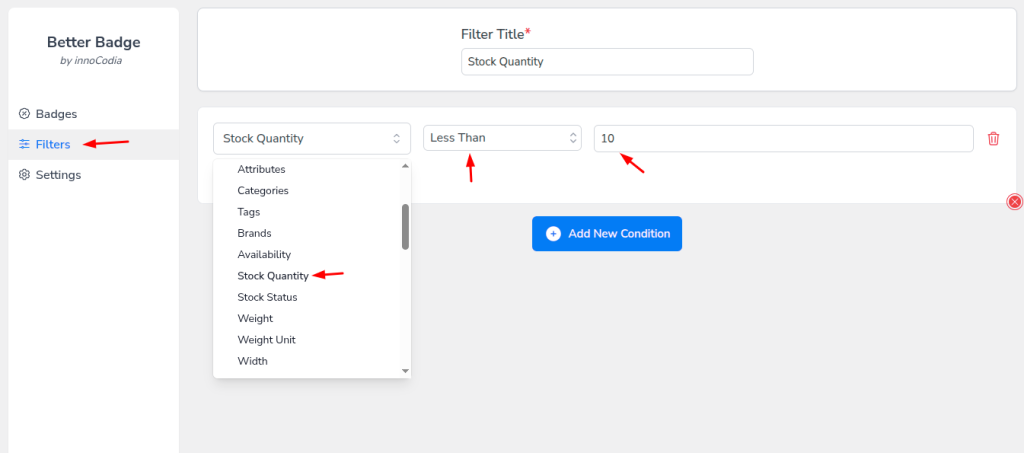
- Better Badge and click on the Filter tab.
- Then write a meaningful title for your filter.
- Then click on Add New Conditions
- Select any of the filters you want from the dropdown. Here, we select Stock Quantity.
- Then select a comparison operator like equal or not equal.
- After that, select the value with which you want to compare. Here we set the threshold value to 10 and select compare operator lessthen.
- Finally, just save the filter.
How to show dynamic stock quantity on badge? #
To apply filter in products follow the steps.
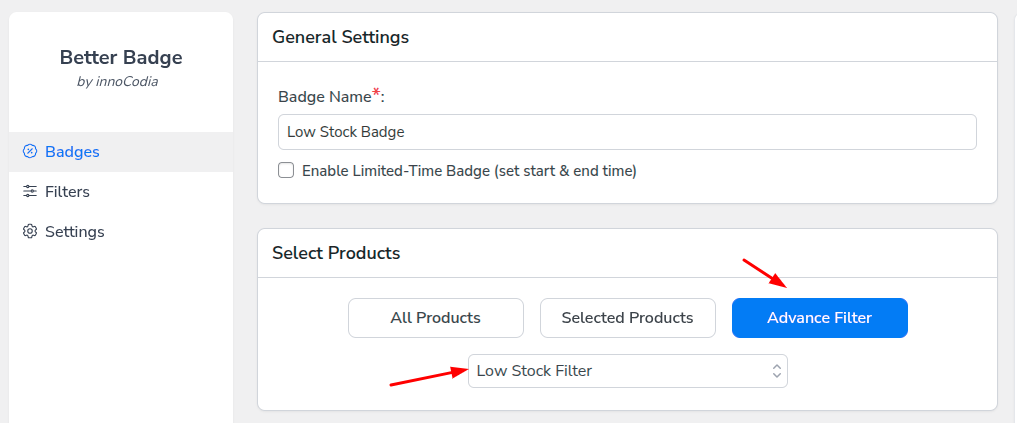
- Simply click on Create New Badge button and type your badge name.
- Then click Advnace Filter button for select created filter.
- After click Advance Filter, you’ll see all the created filter list like dropdown. Select a filter from dorpdown.
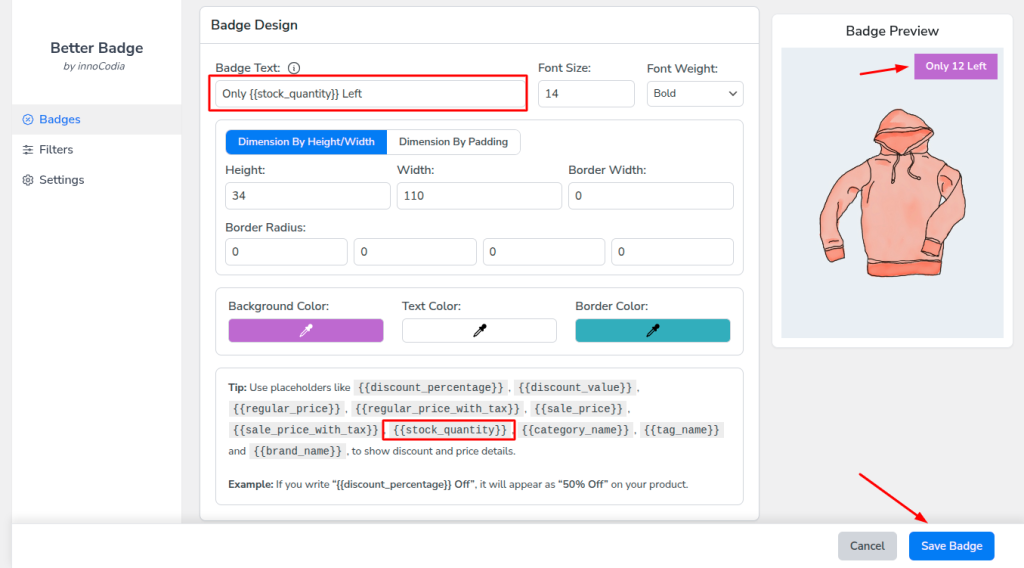
Now set place holder for show dynamic stock quantity. Here we use {{stock_quantity}} placehloder. Before placeholder we put Only and after placeholder we put Left. So that value visible like Only 12 Left. And then save the badge.
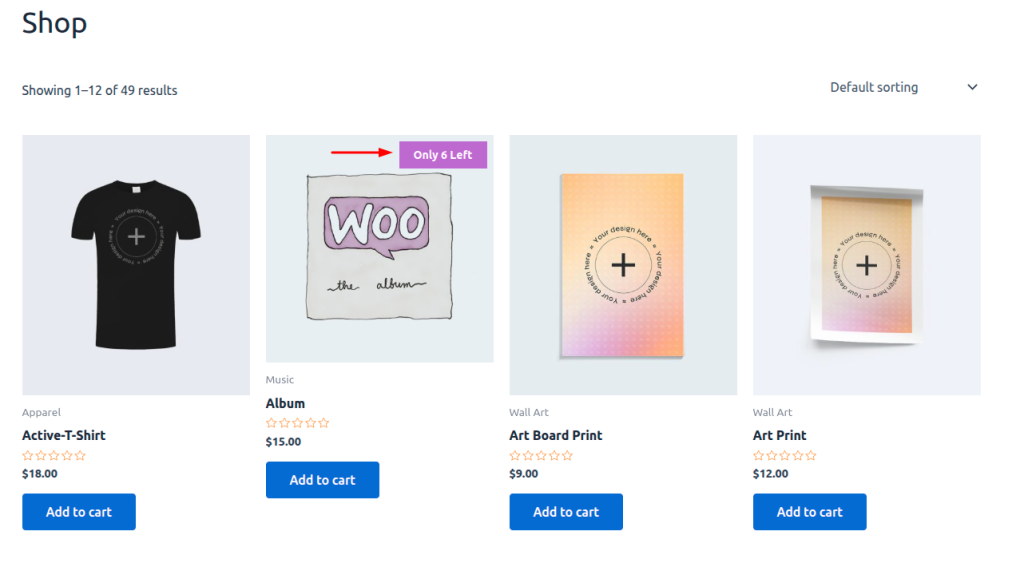
Now see the dynamic placeholder sotck quantity badge in frontend. Here we have a product with 6 stock quantity. And the badge is showing Only 6 Left.